Anki Enhancement
Anki Enhancement is GSM's core feature. It monitors Anki for newly created cards and automatically enhances them with audio, screenshots, and more — turning a basic vocabulary card into a rich, context-filled flashcard.
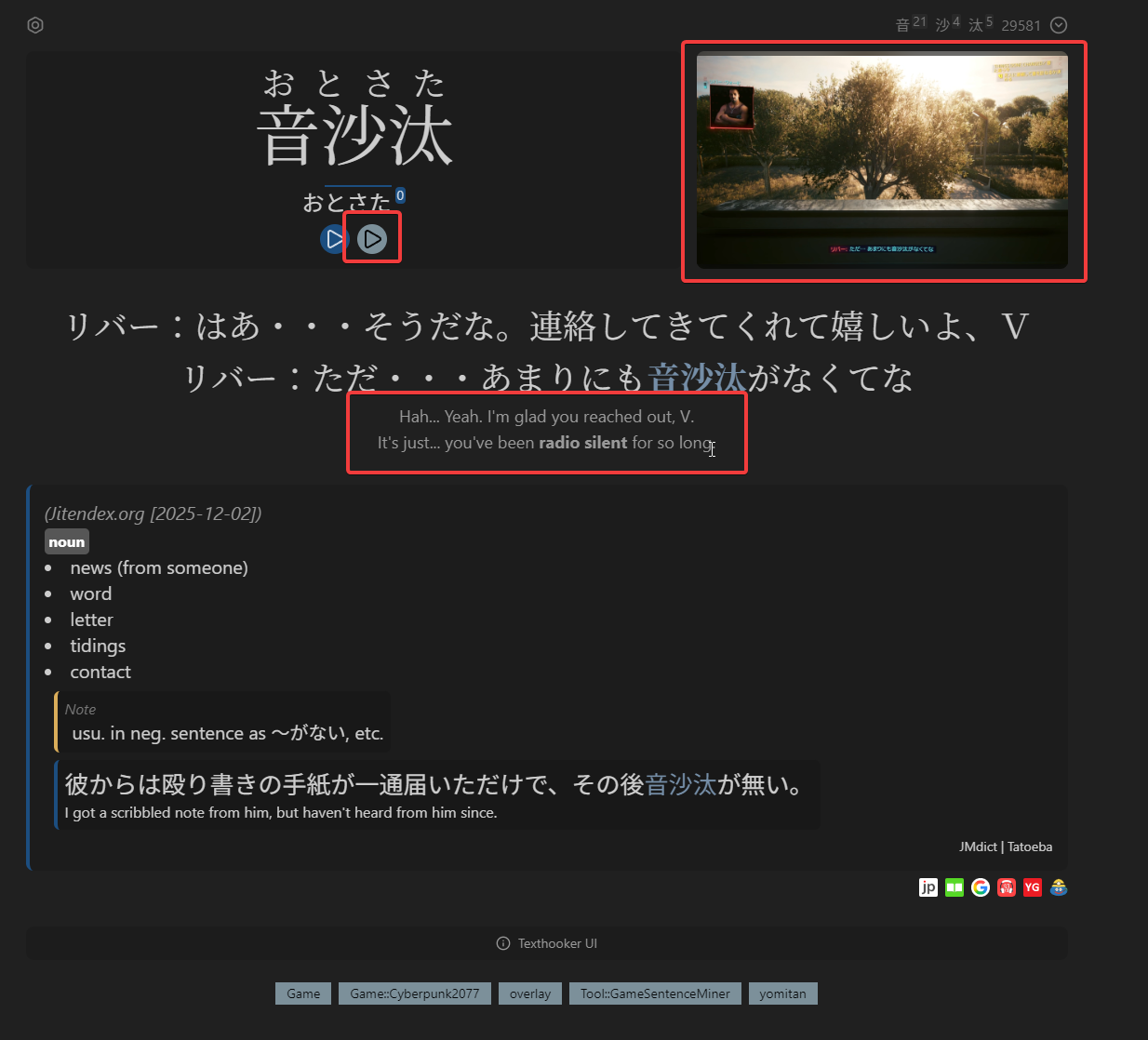
What Can Be Added
When you mine a word in Yomitan and a new card appears in Anki, GSM can automatically add:
| Media | Description |
|---|---|
| Sentence Audio | Audio trimmed from the game recording using Voice Activity Detection (VAD). |
| Screenshot | A static screenshot from the game at the moment the sentence appeared. |
| Animated Screenshot | A short animated clip (AVIF/WebP) instead of a static image. |
| Previous Sentence Screenshot | Screenshot from the prior line, for additional context. |
| Video Clip | A short video clip with audio of the relevant game moment. |
| Sentence with Furigana | Auto-generated ruby text for the sentence. |
| Game Name | The current game, added as a tag or field value. |
| AI Translation | A context-aware translation via your configured AI provider. |
| Tags | Custom tags, game tags, and NSFW tags. |
How It Works
- Card Detection — GSM polls Anki-Connect at a configurable rate (default: every second) to detect newly added cards.
- Line Matching — The new card's sentence is matched against GSM's text log to find the corresponding game line and its timestamp.
- Replay Buffer — GSM triggers OBS to save the replay buffer, capturing the relevant game footage.
- Media Generation — Audio is extracted via FFmpeg and trimmed with VAD. Screenshots are captured at the sentence's timestamp.
- Confirmation Dialog — If enabled, a dialog appears where you can review and edit before the card is updated.
- Card Update — Media files are uploaded to Anki's collection and the card fields are updated via Anki-Connect.
If you mine a second word from the same sentence, GSM reuses the media from the first card instead of regenerating it.
Confirmation Dialog
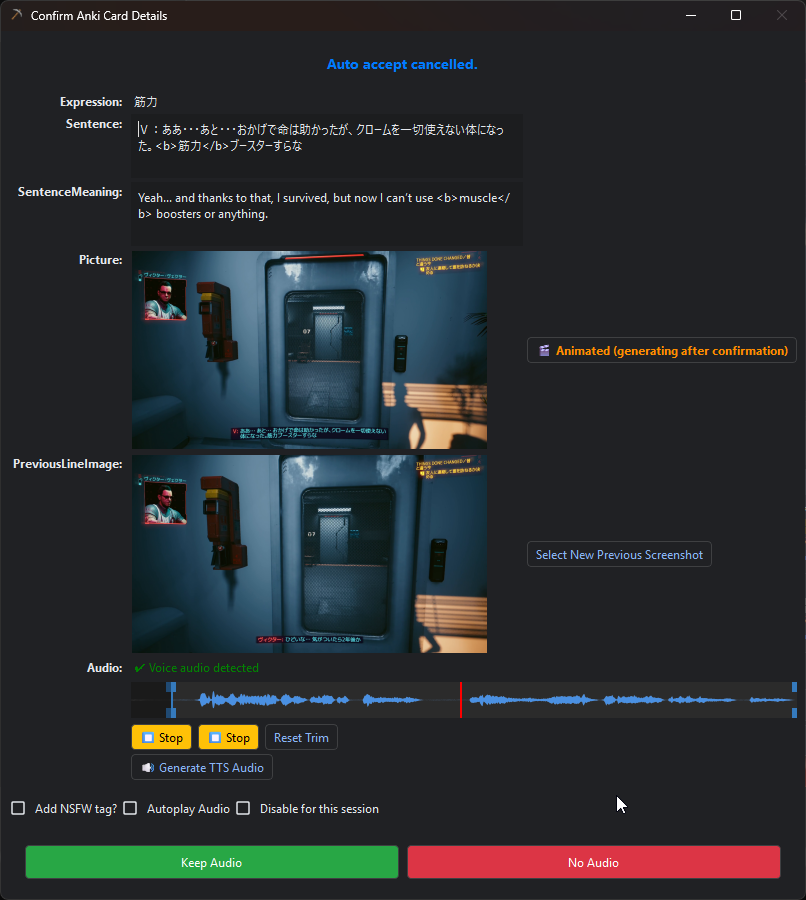
When Show Update Confirmation Dialog is enabled, GSM shows a dialog before updating each card. You can:
- Edit the sentence text and translation.
- Retake or adjust the screenshot.
- Play or replace the audio.
- Toggle the NSFW tag.
- The dialog auto-accepts after a configurable timer (default: 10 seconds).
Texthooker Integration
The texthooker page provides several tools that work alongside Anki Enhancement:
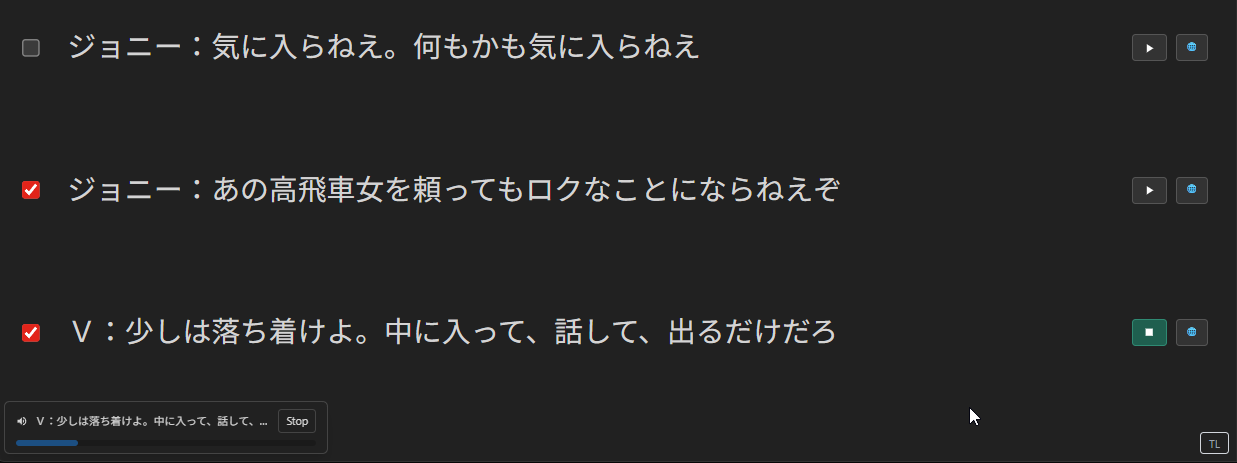
- Checkboxes — Combine multiple lines when mining. The resulting card will have text from each selected line, as well as the full sentence audio for all lines.
- 📷 Screenshot — Opens a frame selector to hand-pick the screenshot from frames around the voiceline.
- 🔈 Audio — Plays back the voiceline audio. Subsequent presses are much faster (cached).
- 🌐 Translate — When AI is configured, places a context-aware translation underneath the line.
Key Settings
Anki Connection
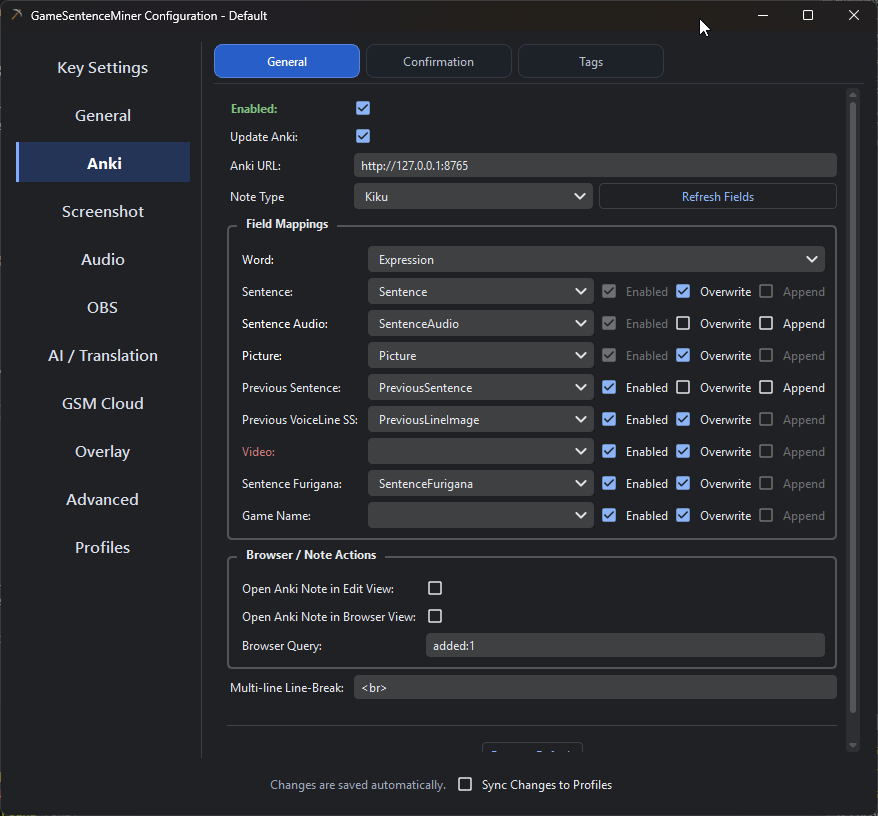
| Setting | Description | Default |
|---|---|---|
Enabled | Enable Anki integration | true |
Update Anki | Enable card enhancement | true |
Anki-Connect URL | URL of the Anki-Connect server | http://127.0.0.1:8765 |
Note Type | The Anki note type to monitor | — |
Polling Rate | How often to check for new cards (ms) | 1000 |
Field Configuration
Each Anki field (sentence, audio, picture, etc.) has individual controls:
| Option | Description |
|---|---|
Enabled | Whether GSM should populate this field. |
Overwrite | Whether to replace existing content in this field. |
Append | Whether to add to existing content instead of replacing. |
The field names must match your Anki note type exactly (case-sensitive).
Confirmation
| Setting | Description | Default |
|---|---|---|
Show Confirmation Dialog | Show a review dialog before updating | — |
Auto-Accept Timer | Seconds before auto-accepting the update | 10 |
Tags
| Setting | Description | Default |
|---|---|---|
Custom Tags | Tags added to every card | GSM |
Add Game Tag | Auto-add the current game name as a tag | true |
Parent Tag | Prefix for game tags (e.g., Game::GameName) | Game |
Tags to Work On | Only update cards that already have these tags (useful for filtering) | — |
Tag Unvoiced Cards | Tag cards where VAD found no voice | — |
Audio Fine-Tuning
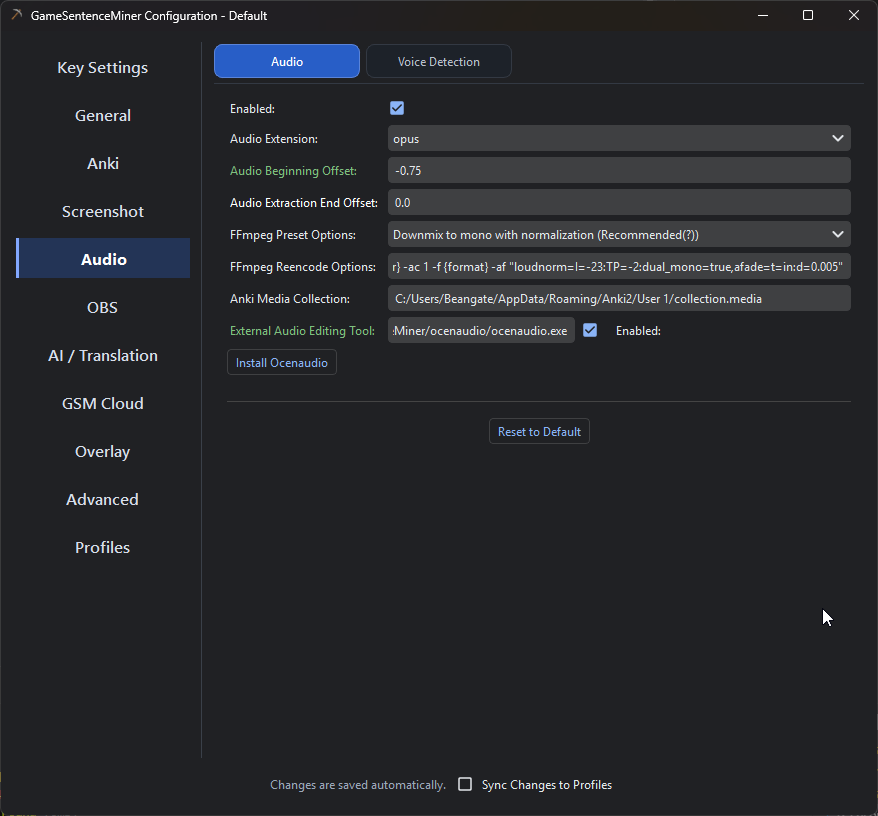
| Setting | Description | Default |
|---|---|---|
Beginning Offset | Time offset for the start of audio extraction (usually negative) | -0.5s |
End Offset | Time added after the VAD trim result | 0.0s |
VAD Trim Beginning | Let VAD trim the start of the audio | false |
External Audio Tool | Path to an external editor (e.g., OcenAudio) for manual trim | — |
Screenshot Timing
| Setting | Description | Default |
|---|---|---|
Screenshot Timing | When to capture relative to the line: beginning, middle, or end | beginning |
Screenshot Offset | Seconds to offset from the timing anchor | 1.0 |
Use Screenshot Selector | Show a frame picker for every card | false |
Related Settings
These settings in other tabs affect how media is generated for card enhancement:
- Screenshot tab: Format, quality, resolution, animated screenshots.
- Audio tab: Format (mp3, opus, ogg), quality, FFmpeg presets.
- VAD tab: Which VAD model to use (Silero or Whisper) and sensitivity.
- AI tab: Translation provider and prompt settings.
- Features tab:
Full Automode, notifications, open card in browser.
Troubleshooting
Audio is cut off at the beginning
This is usually due to a poorly timed text hook event. Increase the negative Beginning Offset in the Audio tab. You can also enable VAD Trim Beginning if you need a large offset but there's silence at the start.
Sentence field doesn't match the full line
This is a Yomitan behavior, not GSM. Yomitan uses sentence termination characters (like 。) to determine where a sentence begins and ends. Set up a Yomitan profile for the texthooker page with Sentence Termination Characters set to Newlines only.
GSM is updating cards from other sources
Use the Tags to Work On setting to restrict GSM to only cards with a specific tag. Combine this with Yomitan profiles to tag cards differently per source.
Prerequisites
- Anki running with the Anki-Connect add-on installed (default port 8765).
- OBS connected with replay buffer enabled and set to 60–120 seconds.
- A dictionary workflow (e.g., Yomitan) that creates cards with a word/sentence field.