OCR
GSM's OCR feature captures text directly from the game screen using optical character recognition, serving as an alternative to text hooking (Agent/Textractor). It's particularly useful for games that can't be hooked, visual novels with hard-subbed text, or console games played via emulator.
OCR detecting and capturing game text in real-time
How It Works
GSM supports a two-pass OCR pipeline:
- OCR1 (Fast Engine) — continuously scans the screen at a configurable rate to detect text changes.
- OCR2 (Accurate Engine) — once stable text is detected, a second, more accurate engine refines the result.
The recognized text is sent to the texthooker page just like hooked text, so your normal mining workflow remains the same.
Supported Engines
| Engine | Type | Role | Notes |
|---|---|---|---|
| OneOCR | Local (Windows) | OCR1 / OCR2 | Default OCR1. Fast. Provides word-level bounding boxes for the overlay. |
| Google Lens | Cloud | OCR2 | Default OCR2. High accuracy. Recommended. |
| Bing | Cloud | OCR2 | High accuracy, similar to Google Lens. |
| ScreenAI | Local | OCR1 / OCR2 | Local alternative to Google Lens. Supports overlay coordinates. |
| Gemini | Cloud | OCR2 | High accuracy. Requires API key. |
| MeikiOCR | Local | OCR1 / OCR2 | Experimental. Text detection with bounding-box stability checks. Japanese only. |
| Meiki Text Detector | Local | OCR1 | Experimental, faster variant of MeikiOCR for stability detection. |
| Apple Live Text | Local (macOS) | OCR1 / OCR2 | macOS only. |
| Local LLM OCR | Local | OCR1 / OCR2 | Use a local LLM for OCR. |
| MLKit OCR | Local | OCR1 / OCR2 | Requires Android server. |
| Google Vision / Azure / OCRSpace | Cloud | OCR2 | Enterprise cloud OCR services. Require API keys. |
Setup
1. Select OCR Area
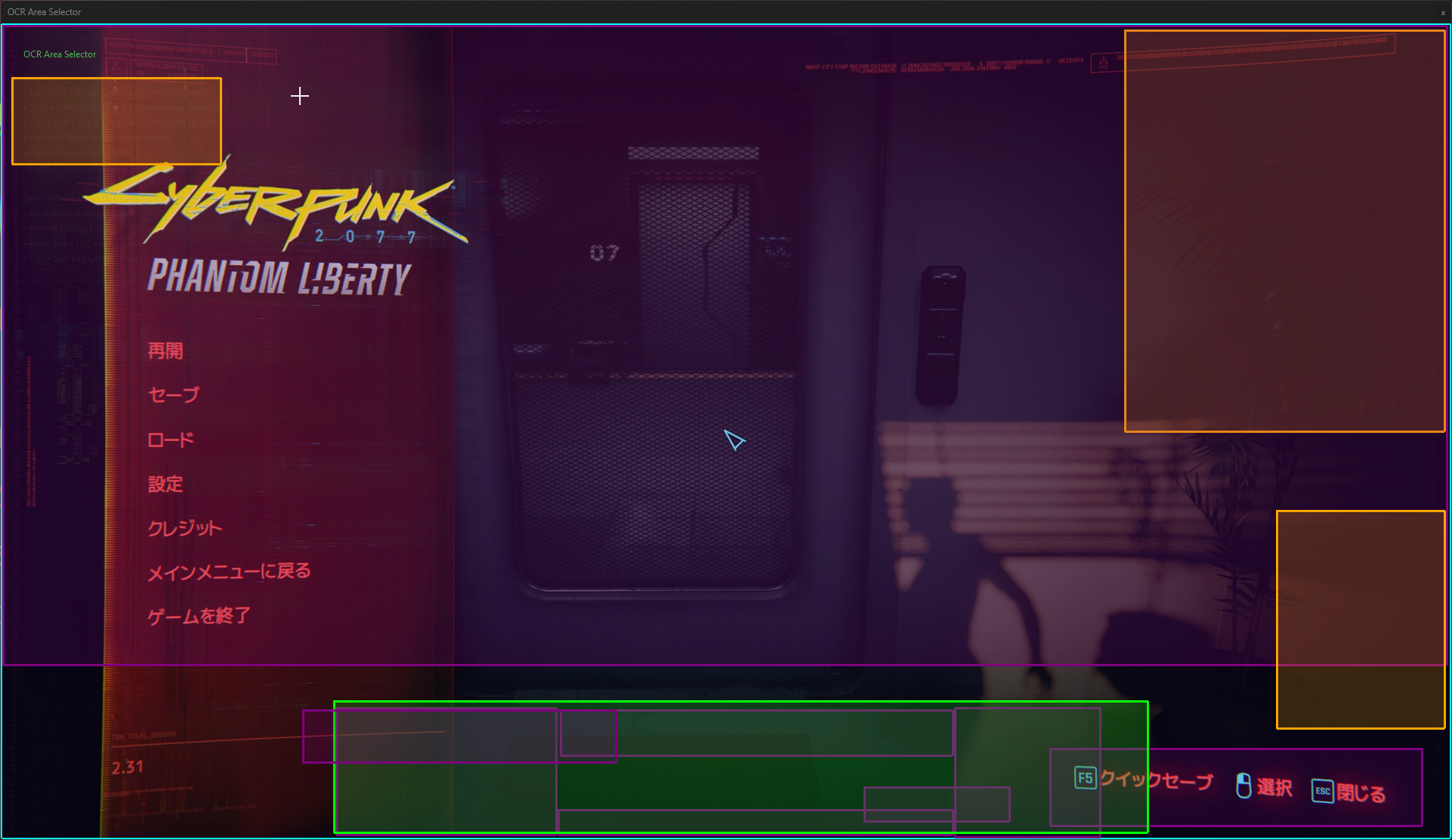
Before OCR can run, you need to define the screen region(s) to scan. The area selector provides several types of selection boxes:
| Box | Input | Purpose |
|---|---|---|
| Green | Left Click | Primary area — dialogue or text that should be captured automatically. |
| Orange | Shift + Left Click | Exclusion zone — text within this area is ignored entirely. |
| Purple | Ctrl + Left Click | Menu area — text captured only via the Manual/Menu OCR hotkey, not automatically. |
| Cyan | Alt + Left Click | Exclusive area — Very Niche, if text appears in this box, only its results are sent, ignoring all other automatic (green) boxes. Useful for specific layouts, e.g. capturing chatter in the bottom-left while ignoring an "after-battle summary" that appears in the normal dialogue area. |
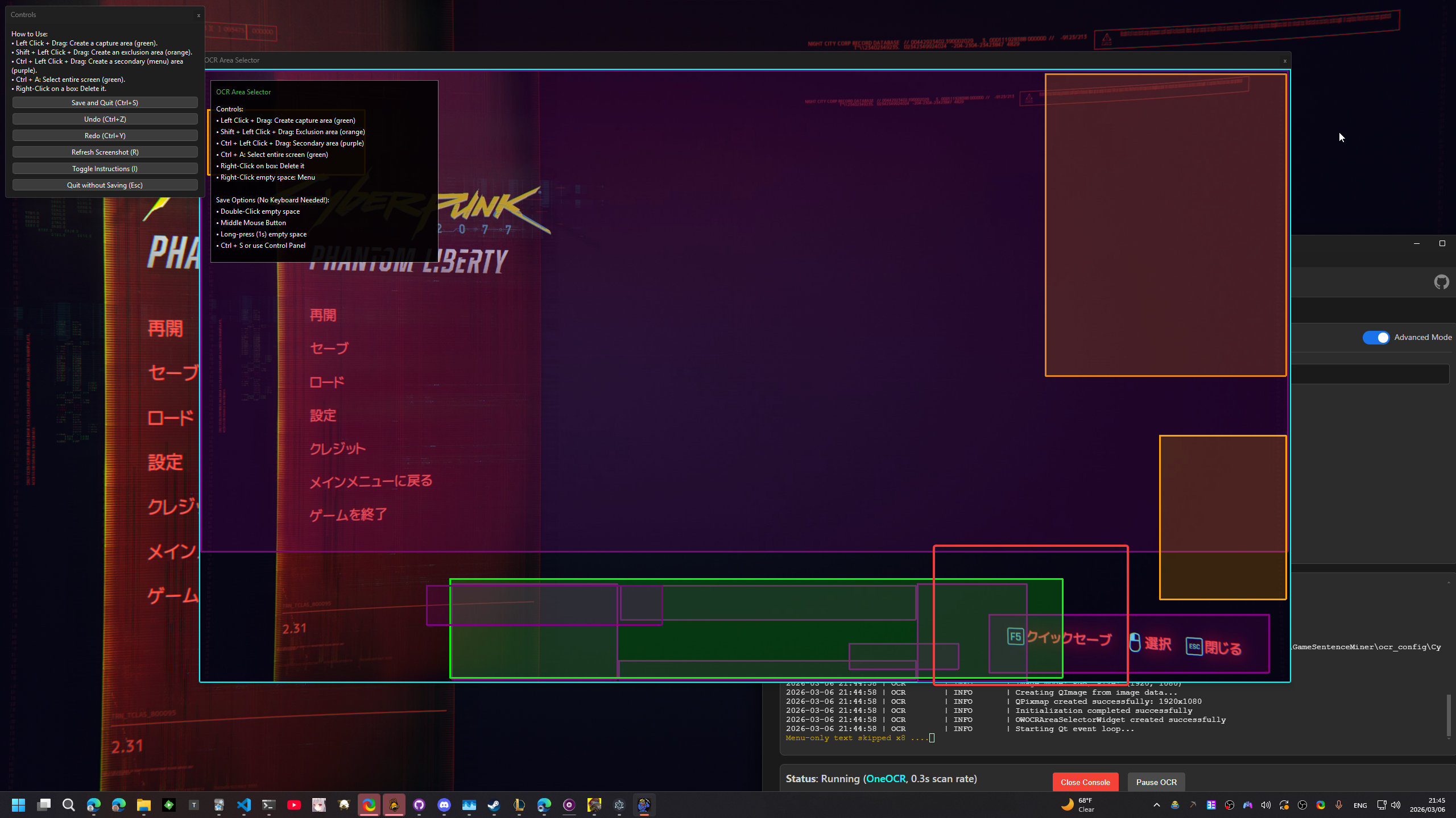
| Black | Ctrl + Alt + Left Click | Black hole — if any text is detected in this box, the entire OCR result is voided. Useful for suppressing capture when a consistent UI component (e.g. menu) is present. Extremely useful, but should be used very selectively. |
There are no hard limits on how many boxes you can create, but keep it minimal for performance.
To set up:
- Start your game and ensure OBS is capturing it.
- Use the hotkey Ctrl+Shift+O (or the menu option) to open the area selector.
- Draw rectangles around the text areas using the appropriate click modifier.
You need a valid OBS Scene set up in order to configure OCR for a game. The area configuration is saved per OBS scene (or per window), so each game remembers its own OCR region.
Menu Box Filtering
If all text captured automatically falls inside a purple box, that text is ignored. This is useful for suppressing OCR when a game menu is open — text from the menu won't be sent to the texthooker.
Import/Export Boxes
You can import and export your box configuration via the clipboard. This is useful for sharing setups with others playing the same game, or for backing up complex configurations.

2. Configure Settings
In GSM's settings under the OCR tab, the settings panel has two modes toggled by the Advanced Mode checkbox in the header.
Basic Mode (default) — ideal for most users. Just set Text Appearance Speed to match how fast text appears in your game and you're done. Engines are pre-configured to OneOCR + Google Lens.
Advanced Mode — exposes engine selection (OCR1/OCR2), scan rate, two-pass settings, and more. See the Settings section below for full details.
3. Start Scanning
OCR can be started in several ways:
- Automatically via the AutoLauncher when a game is detected.
- Manually from GSM's menu or system tray.
- Via hotkey (see below).
Hotkeys
| Hotkey | Function |
|---|---|
Ctrl+Shift+O | Area Select OCR — select a region and perform one-shot OCR |
Ctrl+Shift+G | Menu OCR — run OCR on secondary (menu) rectangles |
Ctrl+Shift+W | Whole Window OCR — run one-shot OCR on the entire window |
Ctrl+Shift+P | Pause/Resume — toggle continuous OCR scanning |
Settings
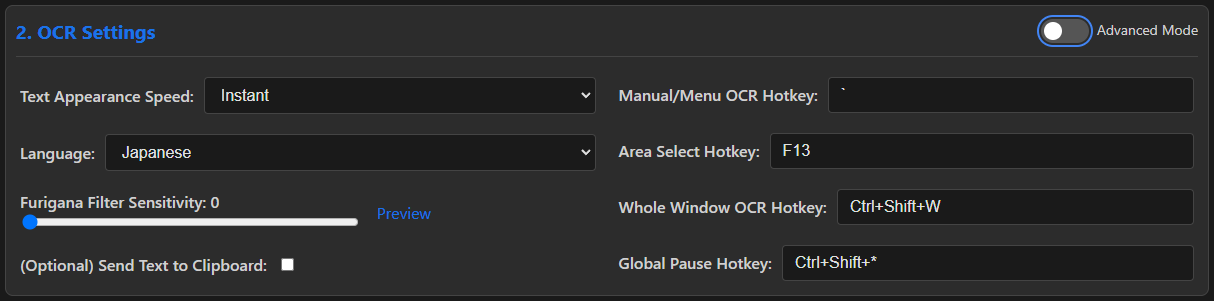
The OCR tab has two modes: Basic and Advanced. Toggle between them using the Advanced Mode checkbox in the settings header.
Basic Mode
Basic mode is the default and is suitable for most users. It hides engine selection and scan rate details behind a single dropdown:
| Setting | Description |
|---|---|
| Text Appearance Speed | Controls the scan rate based on how quickly your game displays text. Options: Instant (0.2s — fastest scan, most CPU), Normal (0.5s — default), Slow (0.8s), Very Slow (1.0s — least CPU). |
| Language | OCR language (default: Japanese). |
| Furigana Filter | Slider to filter out furigana from results. |
| Send to Clipboard | Copy recognized text to the clipboard. |
| Hotkeys | Area Select, Manual OCR, Whole Window OCR, and Pause/Resume hotkeys. |
In Basic mode, the engines default to OneOCR (OCR1) and Google Lens (OCR2) with two-pass enabled.
Advanced Mode
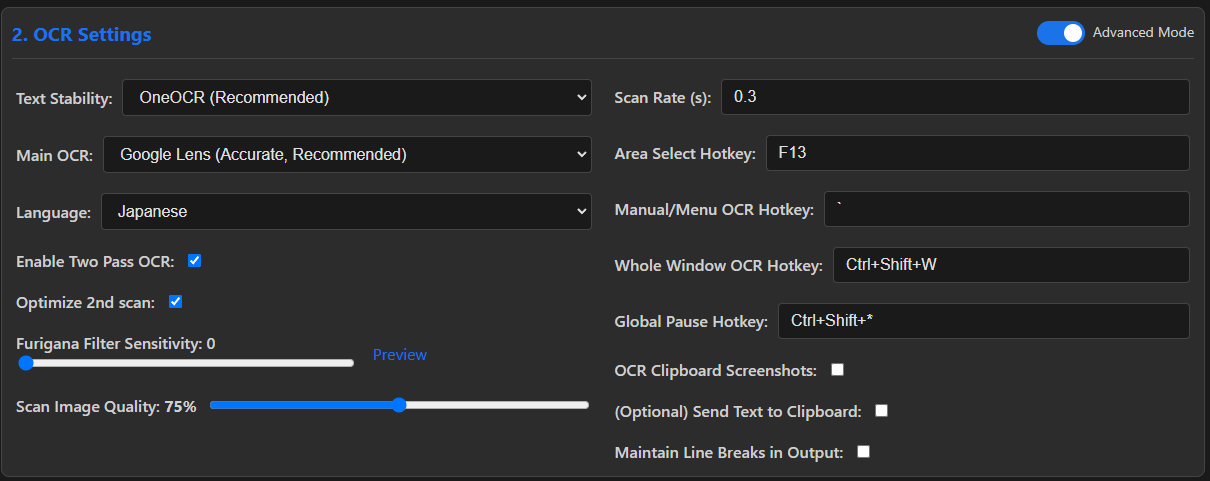
Advanced mode exposes full control over the OCR pipeline:
| Setting | Description | Default |
|---|---|---|
| Text Stability (OCR1) | The fast engine that scans continuously to detect text changes. | OneOCR |
| Main OCR (OCR2) | The accurate engine triggered once text stabilizes. | Google Lens |
| Scan Rate | Delay between screen captures in seconds. Lower = faster detection but more CPU. | 0.5 |
| Two-Pass OCR | Use OCR1 for stability detection, then OCR2 for accuracy. Recommended. | Enabled |
| Optimize 2nd Scan | Crop image to detected text region before running OCR2 for better performance. | Enabled |
| Scan Image Quality | Image scale factor (50–100%) before OCR. Lower values are faster but less accurate. | 75% |
| Language | OCR language. | Japanese |
| Furigana Filter | Slider (0–100) to filter out furigana from results. | 0 |
| Send to Clipboard | Copy recognized text to the clipboard. | — |
| Keep Newlines | Preserve line breaks in OCR output. | — |
| OCR Clipboard Screenshots | Take OCR screenshots and send to clipboard. | — |
| Hotkeys | Area Select, Manual OCR, Whole Window OCR, and Pause/Resume. | — |
Extra & Debug Tools
A collapsible section at the bottom provides additional options:
| Setting | Description |
|---|---|
| Process Priority | Set OCR process priority on Windows (Low → High). Default: Normal. |
| Default Furigana Sensitivity | Default furigana filter value for new scenes. |
| Optional Dependencies | Install/uninstall optional engine dependencies (Faster PNG, Google Vision, Azure, OCRSpace). |
Overlay Integration
When using engines that provide word-level bounding boxes (OneOCR, MeikiOCR, ScreenAI), GSM can send coordinates to the GSM Overlay. This enables Yomitan dictionary lookups directly on the game screen by hovering over recognized words.
Troubleshooting
Only the first part of text is detected
This happens when game text appears slowly (typewriter effect) and OCR captures the screen before the full line is displayed.
Fix: Set your game to display text instantly if possible. If not, increase the Scan Delay setting to wait longer before capturing.
Prerequisites
- Windows recommended for OneOCR. Other engines work cross-platform.
- OBS connected.
- Internet connection required for cloud-based engines (Google Lens, Azure, etc.).