Game Pausing
Game Pausing freezing gameplay while GSM overlay interaction continues
Game Pausing is one of GSM's coolest power-user features. It can temporarily suspend the currently targeted game process, giving you a clean moment to read, inspect text, use the overlay, or mine without the game continuing in the background.
For games without a native pause button, this can feel absurdly good when it works well.
This feature is very experimental and directly manipulates process execution.
- It is Windows-only.
- It can cause crashes.
- Games with online features or anti-cheat may detect this and result in bans or other penalties.
- Only use it if you understand the risks and are comfortable accepting the consequences.
GSM is not responsible for issues caused by this feature.
What It Does
When triggered, GSM suspends the active game process instead of sending an in-game pause command. That means:
- The game world stops immediately.
- Dialogue progression stops.
- Timers and animations stop.
- You can take your time with OCR, overlay lookups, or mining.
When you are done, GSM resumes the same process. The feature also includes an automatic timeout so a game is not left paused forever by accident.
Why It's Cool
This is especially nice for:
- Games that have no pause at all during dialogue or cutscenes.
- Real-time games where you want a quick reading window.
- Overlay workflows where you want the text perfectly frozen while you hover, click, or navigate.
- Controller-first setups, where pausing on overlay entry can make the whole thing feel much more natural.
Setup
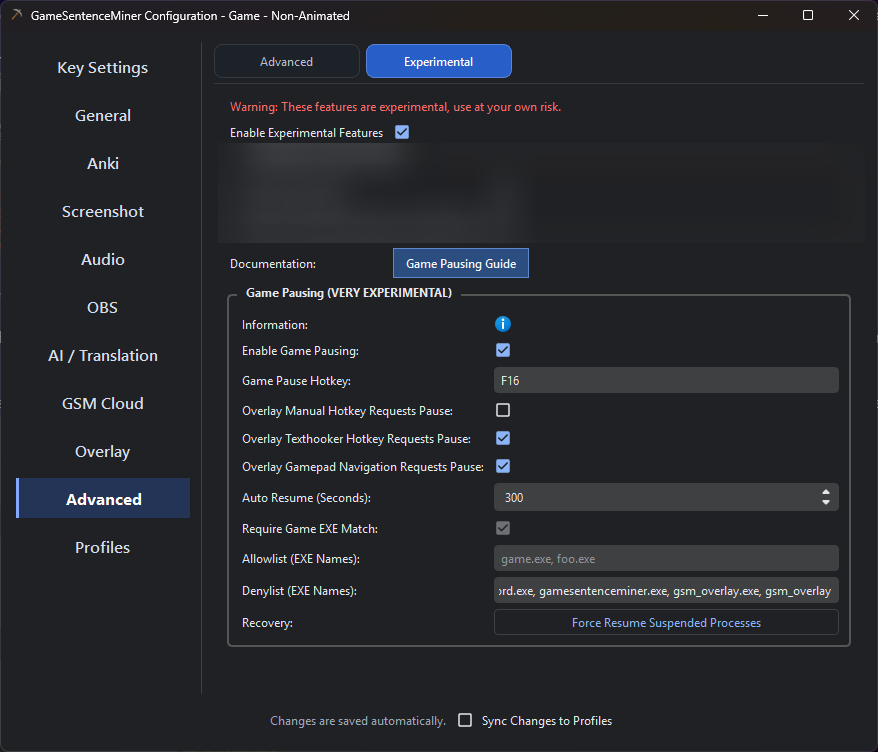
Game Pausing lives in the Experimental tab.
- Enable Experimental Features.
- Enable Game Pausing.
- Set a Game Pause Hotkey if you want manual pause/resume control.
- Configure the Auto Resume timeout.
- Optionally enable overlay-triggered pausing for:
- Overlay manual hotkey
- Overlay texthooker hotkey
- Overlay gamepad navigation
How It Works
GSM ties pausing to the game window OBS is currently targeting. When you trigger the feature:
- GSM resolves the current target window.
- It finds the owning process.
- It verifies that process is allowed to be paused.
- It suspends the process and tracks its PID, executable name, and creation time.
- It resumes that exact process later, either manually or automatically.
That tracking matters. GSM stores enough information to avoid resuming the wrong process if a PID gets reused later.
Safety Rails
Even though this feature is aggressive, GSM does include some real protections:
- Require Game EXE Match: Pausing only succeeds when the target executable matches the currently detected game executable.
- Allowlist: You can explicitly allow specific
.exenames. - Denylist: GSM blocks known bad targets such as system processes and
steam.exe. - Auto Resume: Suspended games automatically resume after a configurable timeout.
- Startup Cleanup: If GSM closes unexpectedly, it attempts to resume previously suspended tracked processes on the next run.
Require Game EXE Match is effectively a hard safety check in the UI. It exists to stop this feature from pausing the wrong window just because focus or targeting got weird.
Overlay Integration
Game Pausing can be tied directly into the overlay flow, which is where the feature gets especially slick.
Overlay Manual Hotkey Requests Pause
When enabled, entering overlay manual mode pauses the game, and leaving it resumes the game.
This is great when you want to hold the overlay hotkey, inspect text, then instantly drop back into gameplay.
Overlay Texthooker Hotkey Requests Pause
When enabled, opening the overlay's texthooker flow can pause the game while you work through the text.
This is useful for dialogue-heavy scenes where you want the screen to stay perfectly stable while mining.
Overlay Gamepad Navigation Requests Pause
When enabled, entering controller navigation mode can pause the game until you leave navigation.
This is a genuinely very cool setup for gamepad-first play, because it makes overlay lookup feel less like fighting the game and more like a proper built-in reading mode.
Auto Resume
Game Pausing always includes an auto-resume timeout. The current range is 5 to 300 seconds, with a default of 30 seconds.
This timeout is intentionally non-optional. It is there to reduce the chance of leaving a game suspended indefinitely.
If you need very long pauses, you may find Nyrna useful for that style of workflow.
Practical Recommendations
- Start with the plain Game Pause Hotkey first before enabling overlay-triggered pausing.
- Test on an offline single-player game you do not care about.
- Keep the auto-resume timer fairly short until you trust your setup.
- Use the allowlist if you know exactly which executable you want to target.
- Do not use this on online games, anti-cheat games, or anything where suspension could be interpreted as tampering.
Troubleshooting
Nothing happens when I press the pause hotkey
Check all of the following:
- Experimental Features is enabled.
- Game Pausing is enabled.
- You are on Windows.
- OBS is actually targeting the correct game window.
- The target executable matches the detected game executable.
- The process is not blocked by the denylist.
The wrong thing is being targeted
This usually means OBS is not pointed at the window you think it is, or the detected game executable does not match the active target. Fix the OBS target first before trusting pausing.
The game resumed on its own
That is most likely the Auto Resume timer doing exactly what it is supposed to do.
Prerequisites
- Windows
- Experimental Features enabled
- OBS connected and correctly targeting the game window
- A game where process suspension is safe enough for you to accept the risk