Longplay
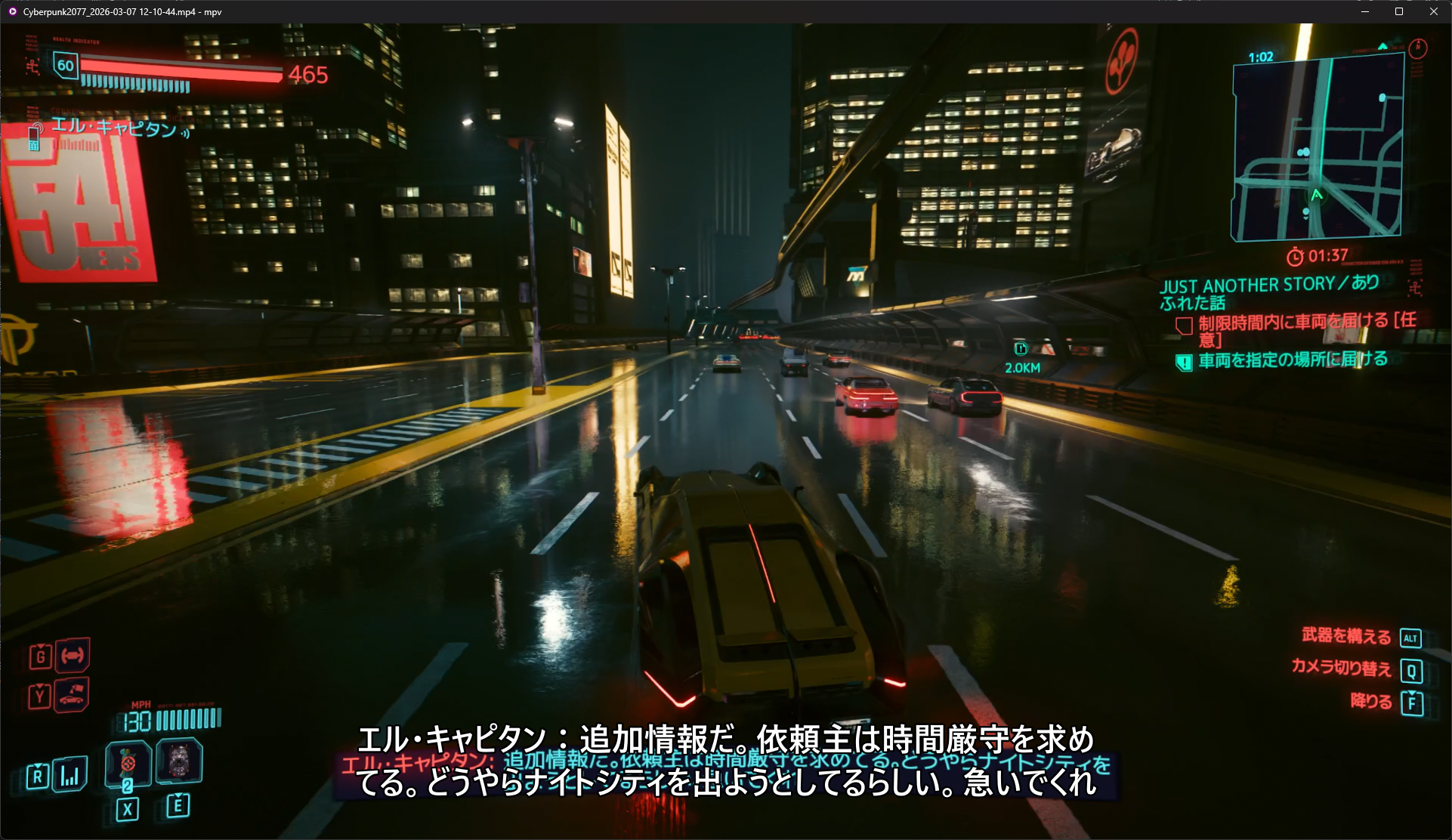
The Longplay feature creates a continuous video recording of your gaming session with synchronized subtitle files. Every line of captured game text is written as an SRT subtitle entry timed to when it appeared during gameplay — giving you a watchable video of your play session with Japanese text subtitles. This is perfect for review, immersion, or sharing your gameplay with context. You can also mine after the fact with tools such as ASBPlayer, and various mpv tools.
Use Cases
- Review sessions — Rewatch gameplay with subtitles to reinforce comprehension.
- Passive immersion — Watch recordings later as listening/reading practice.
- Progress tracking — See how your understanding improves over time.
- Sharing — Share annotated gameplay with others.
- Post-session mining — Use tools like ASBPlayer to mine vocabulary from the recorded session.
How It Works

- GSM starts recording alongside OBS's Replay Buffer when you begin playing.
- As you play, every line of game text captured by GSM is written to an SRT subtitle file.
- Each subtitle entry is timed to match when the line appeared relative to the recording start.
- When you stop recording, the SRT file is finalized alongside the video file.
The SRT file is placed next to the recording with the same base name:
Game_2025-02-28.mkv
Game_2025-02-28.srt
Most media players (VLC, mpv, etc.) will automatically load the subtitle file when you play the video.
How to Use
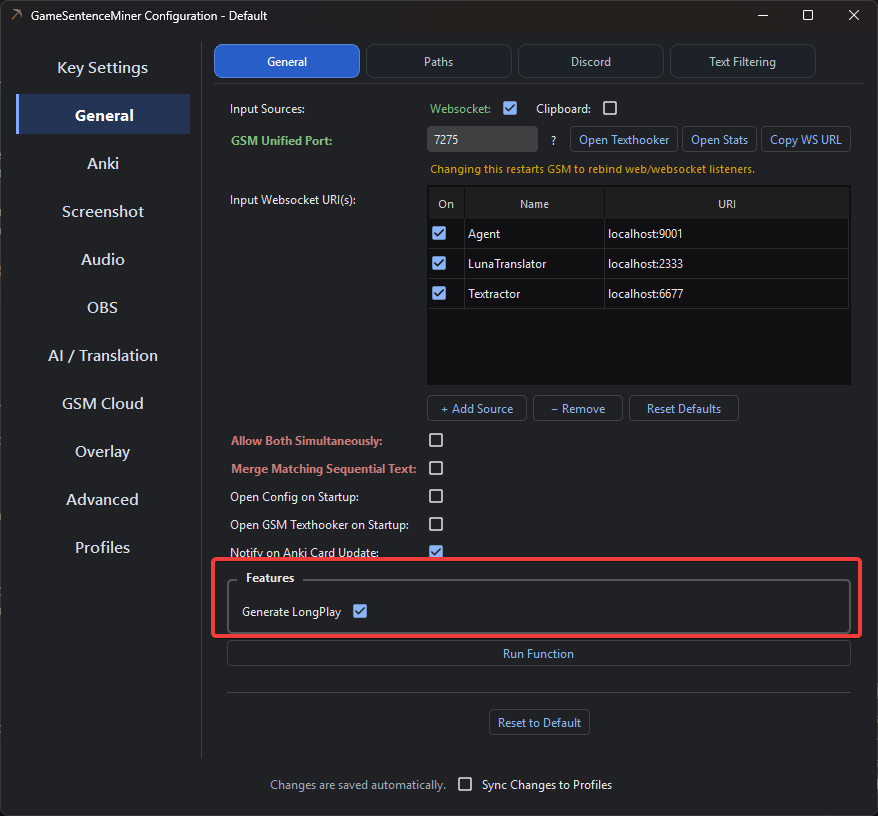
- Enable Generate Longplay in GSM's settings (General tab).
- Make sure text capture is active (text hooker or OCR).
- Play the game normally.
- Recording will begin simulatenously with Replay Buffer Recording.
- When you close GSM, the recording will stop and your Video + SRT file will be saved in OBS's recording folder.
Settings
| Setting | Description | Default |
|---|---|---|
Generate Longplay | Enable/disable longplay subtitle generation | Disabled |
That's it — longplay is a simple toggle with no additional configuration needed.
Longplay vs. Normal Mining
Longplay and normal mining serve different purposes and can run simultaneously:
| Normal Mining | Longplay | |
|---|---|---|
| Purpose | Create individual Anki flashcards | Create a reviewable video with subtitles |
| Trigger | Card creation in Anki | Continuous during recording |
| Output | Audio clips, screenshots, Anki cards | Full video + SRT subtitle file |
| OBS Mode | Replay buffer | Full recording |
| Text Handling | Match sentence to card | Write every line as a subtitle |
You can use both at the same time! Keep the replay buffer running for mining while also recording for longplay.
File Splitting
If OBS splits the recording into multiple files (due to file size limits or format settings), GSM handles this automatically — it finalizes the current SRT file and starts a new one for the next video segment. (Idk if this is true?)
Prerequisites
- OBS connected and configured for recording (not just replay buffer).
- Text capture active (text hooker or OCR).