Overlay — Gamepad Navigation
The GSM Overlay has built-in gamepad support, letting you navigate detected text and trigger Yomitan dictionary lookups entirely with a controller — no keyboard or mouse required.
This feature is marked Experimental. It should work, but one man is not enough to test all controllers and setups.
Video Guide
How It Works
A small background process reads raw gamepad input at the OS level and forwards it to the overlay via WebSocket. This means the controller works regardless of which window is focused — the game can have focus while you still navigate overlay text.
- A controller is connected.
- You activate navigation (hold modifier button or toggle it on).
- D-pad moves between text blocks (Up/Down) or characters/tokens (Left/Right).
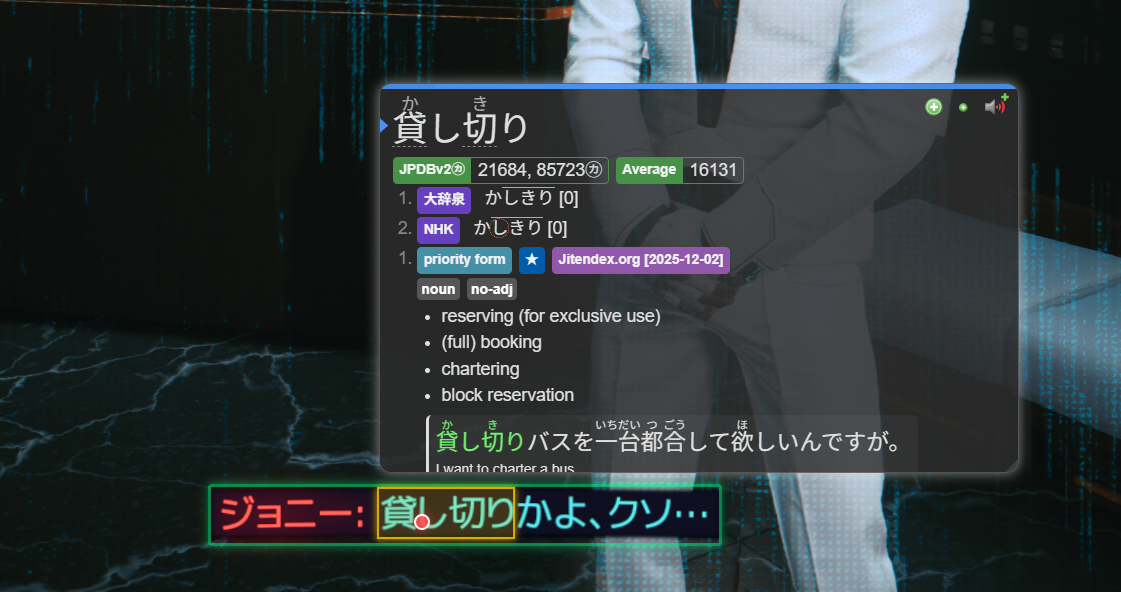
- Yomitan lookups are triggered automatically as you move the cursor.
- Press B (or your cancel button) to dismiss and return focus to the game.
Quick Start
- Launch the Overlay from GSM's Home tab.
- Open Controller Settings — press Alt+Shift+S → Controller tab, or use the GSM tray icon to open overlay settings and then switch to Controller.
- Enable Gamepad Navigation and confirm the server shows Connected.
- Connect your controller. The 🎮 indicator in the bottom-left of the overlay should update.
- Hold LB (modifier mode default) and press any D-pad direction to start navigating.
Activation Modes
Modifier Mode (default)
Hold a button (LB by default) while pressing the D-pad. Navigation is only active while the button is held. When you release it, the overlay returns to click-through pass-through mode.
- Best for players who want to quickly dip in and out without changing game state.
Toggle Mode
Press a single button (Back/Select by default) to enter controller navigation mode. Press it again (or press Cancel) to exit.
- Best for reading-heavy games where you want to stay in navigation for longer stretches.
- A mode indicator badge appears on the overlay while toggle-mode navigation is active.
You can switch modes in the Controller tab of overlay settings.
D-Pad Navigation
| Direction | Action |
|---|---|
| Up / Down | Switch between detected text blocks |
| Left / Right | Move cursor left/right within the current block (character or token) |
Navigation Granularity — Tokens vs Characters
By default, Left/Right moves one character at a time. Enable Token Navigation Mode to jump by whole words (tokens) instead — significantly faster for looking up compound words.
Tokens come from your chosen Tokenizer Backend (see Settings below). You can also press Y at any time during navigation to toggle between character and token mode on the fly.
Auto-Confirm
Yomitan lookups fire automatically as you move the cursor — no extra button press needed. This is controlled by the Auto-Confirm Selection setting (enabled by default).
If you want manual control, disable Auto-Confirm and press A to trigger a lookup at the current cursor position.
Two-Stage Mining
When a Yomitan popup is open and you want to mine the word:
- First confirm (A): opens the Yomitan popup from the current cursor word.
- Second confirm (A): mines the word to Anki (sends it through GSM's normal mining flow).
Button Reference
| Button | Default | Action |
|---|---|---|
| LB | Modifier | Hold to activate navigation (modifier mode) |
| Back/Select | Toggle | Enter/exit navigation mode (toggle mode) |
| D-pad Up/Down | — | Navigate between text blocks |
| D-pad Left/Right | — | Move cursor within current block |
| A | Confirm | Manually confirm lookup / mine word |
| B | Cancel | Dismiss popup / exit navigation |
| Y | Token Toggle | Toggle character ↔ token navigation on the fly |
All buttons are fully remappable in the Controller settings tab.
Optional Buttons
| Setting | Default | Description |
|---|---|---|
| Forward Enter Button | Disabled | Press this to send an Enter keystroke to your game window. Useful for advancing dialogue while staying in nav mode. |
| Manual Scan Button | Disabled | Triggers an immediate OCR scan (same as the keyboard scan hotkey F8). |
Tokenizer Backends
Token-mode navigation and furigana rendering both require a tokenizer backend. Available options:
| Backend | Requires | Notes |
|---|---|---|
| MeCab (default) | GSM backend running | Fastest. Bundled with GSM. No setup needed. |
| Yomitan Bridge | Overlay running | Uses the embedded Yomitan's own tokenizer. No external server. |
| Yomitan API | Yomitan API server | External Yomitan server (advanced). |
| JitenAPI | Internet + API key | Cloud-based. Requires free API key from jiten.moe. |
| JPDB API | Internet + API key | Cloud-based. Requires JPDB account and bearer token. |
For most users, leave this on MeCab.
Thumbstick Support
The left thumbstick acts as a virtual mouse — hover it over recognized text and Yomitan will scan that position, similar to normal mouse hover.
The right thumbstick scrolls within an open Yomitan popup:
- Vertical axis: scroll definitions up/down.
- Horizontal axis: navigate between multiple dictionary entries.
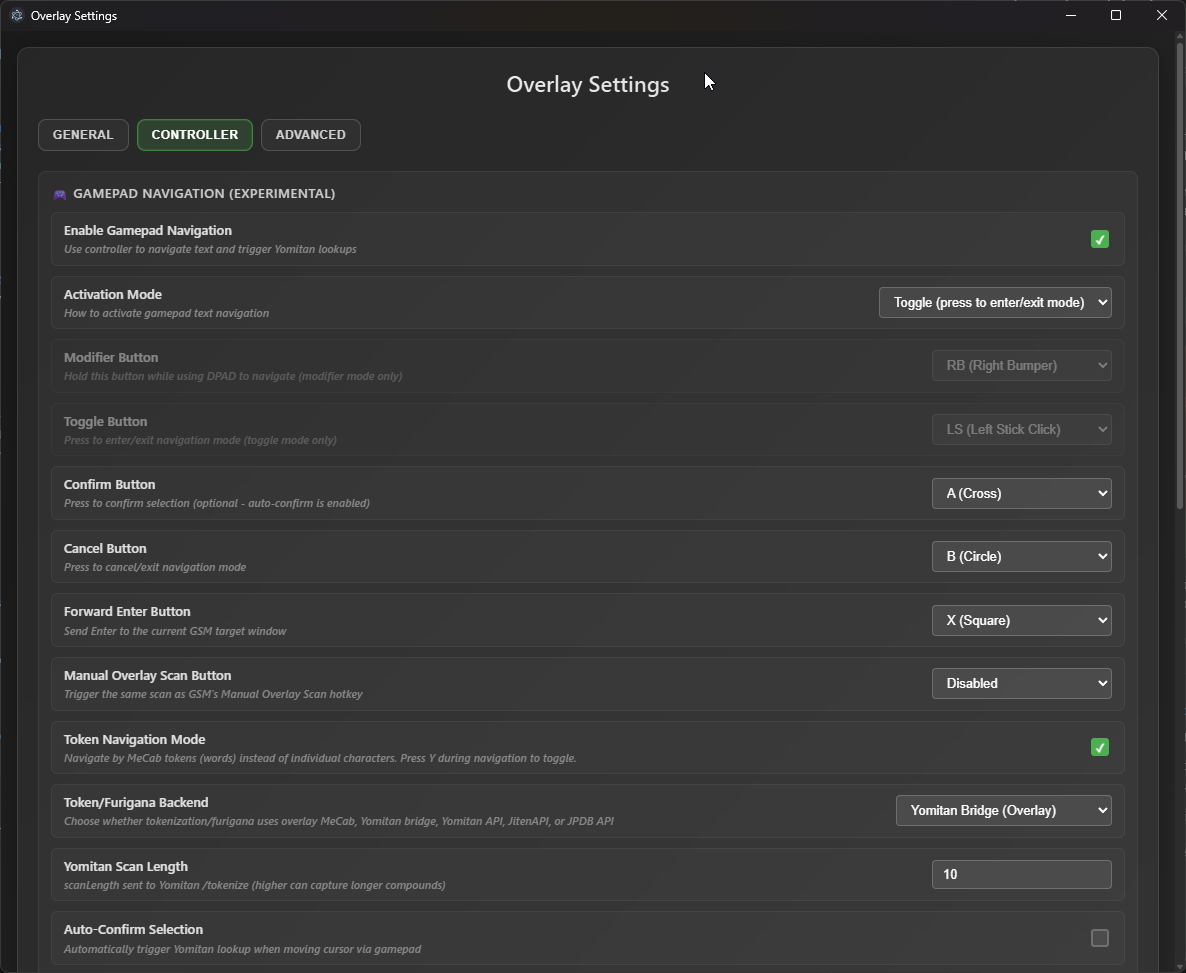
Settings Reference (Controller Tab)
Open via Alt+Shift+S → Controller in the overlay. If the overlay is already running in the background, you can also open the same settings flow from the GSM tray icon and then go to the Controller tab.
Navigation
| Setting | Default | Description |
|---|---|---|
Enable Gamepad Navigation | On | Master switch for all controller navigation. |
Activation Mode | Modifier | Modifier (hold) or Toggle (press to enter/exit). |
Modifier Button | LB | Button to hold in modifier mode. |
Toggle Button | Back/Select | Button to enter/exit toggle mode. |
Confirm Button | A | Manually confirm lookup or mine. |
Cancel Button | B | Exit navigation / dismiss popup. |
Token Navigation Mode | Off | Navigate by tokens (words) instead of characters. |
Auto-Confirm Selection | On | Auto-trigger Yomitan when cursor moves. |
Navigation Repeat Delay | 400ms | Delay before direction input starts repeating. |
Navigation Repeat Rate | 150ms | Speed of repeated input when holding a direction. |
Optional Actions
| Setting | Default | Description |
|---|---|---|
Forward Enter Button | Disabled | Sends Enter to the game window. |
Manual Overlay Scan Button | Disabled | Triggers an OCR scan. |
Token/Furigana Backend | MeCab | Backend used for word tokenization. |
Yomitan API URL | http://127.0.0.1:19633 | URL for Yomitan API backend (if selected). |
Yomitan Scan Length | 10 | Number of characters sent to Yomitan per scan. |
JitenAPI Key | — | API key for JitenReader cloud tokenization. |
JPDB API Key | — | Bearer token for JPDB tokenization. |
Activation Methods
| Setting | Default | Description |
|---|---|---|
Enable Controller Activation | On | Allow controller buttons to activate navigation mode. |
Enable Keyboard Hotkey | On | Allow a keyboard shortcut to toggle navigation. |
Keyboard Toggle Hotkey | Alt+G | Hotkey to toggle gamepad navigation from keyboard. |
Input Server
| Setting | Default | Description |
|---|---|---|
Server Port | 7276 | WebSocket port for the Rust gamepad input server. |
Server Status | — | Live indicator showing whether the server is connected. |
Gamepad Status | — | Shows which controller(s) are connected. |
Furigana Display
When Token Navigation Mode is active and a backend is configured, the overlay can also render furigana (reading hints) above kanji compounds. Furigana appears automatically for the current line and nearby lines as you navigate.
Troubleshooting
Server Status shows "Disconnected"
The Rust gamepad server isn't running. It should start automatically with the overlay — try restarting GSM. If the port is already in use, change the Server Port in settings.
Controller not detected
- Check the Gamepad Status field in Controller settings — it will show what's connected.
- Try unplugging and replugging the controller.
- XInput controllers (Xbox) are natively supported. DualShock/DualSense controllers may need DS4Windows or similar.
Yomitan popup doesn't appear when navigating
- Ensure Auto-Confirm Selection is enabled.
- Try pressing A manually to trigger the lookup.
- Make sure your dictionaries are imported (press Alt+Shift+Y to open Yomitan settings).
Navigation doesn't activate when holding LB
- Check that you're in Modifier activation mode (not Toggle).
- Confirm Enable Controller Activation is checked in settings.
Cursor jumps unexpectedly
Reduce D-pad repeat rate or increase repeat delay in Controller settings.
Prerequisites
- GSM Overlay must be running.
- GSM Python backend must be running (provides OCR + WebSocket server).
- Dictionaries imported in the overlay's embedded Yomitan (Alt+Shift+Y).
- A compatible controller connected via USB or Bluetooth.