Overlay
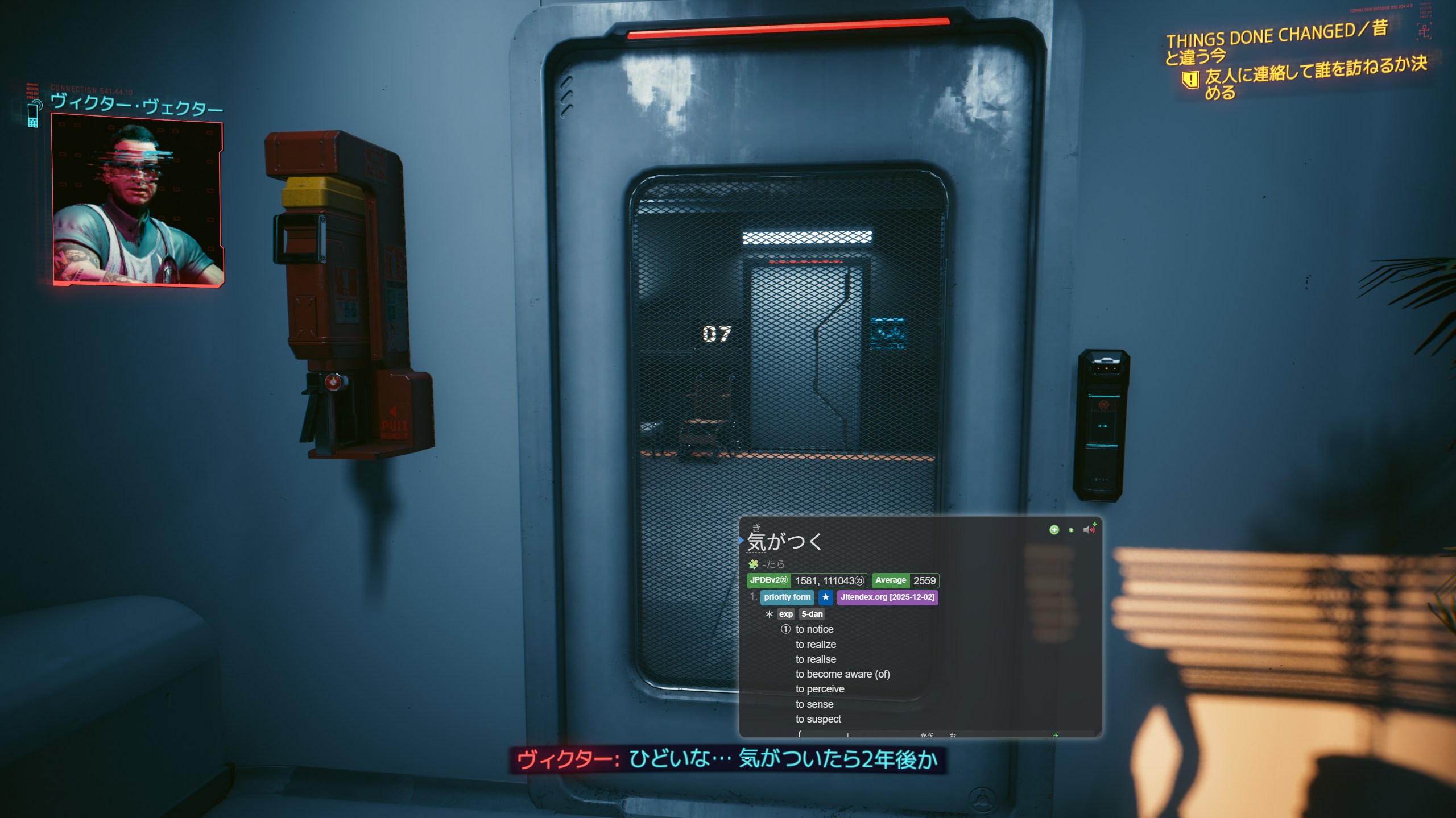
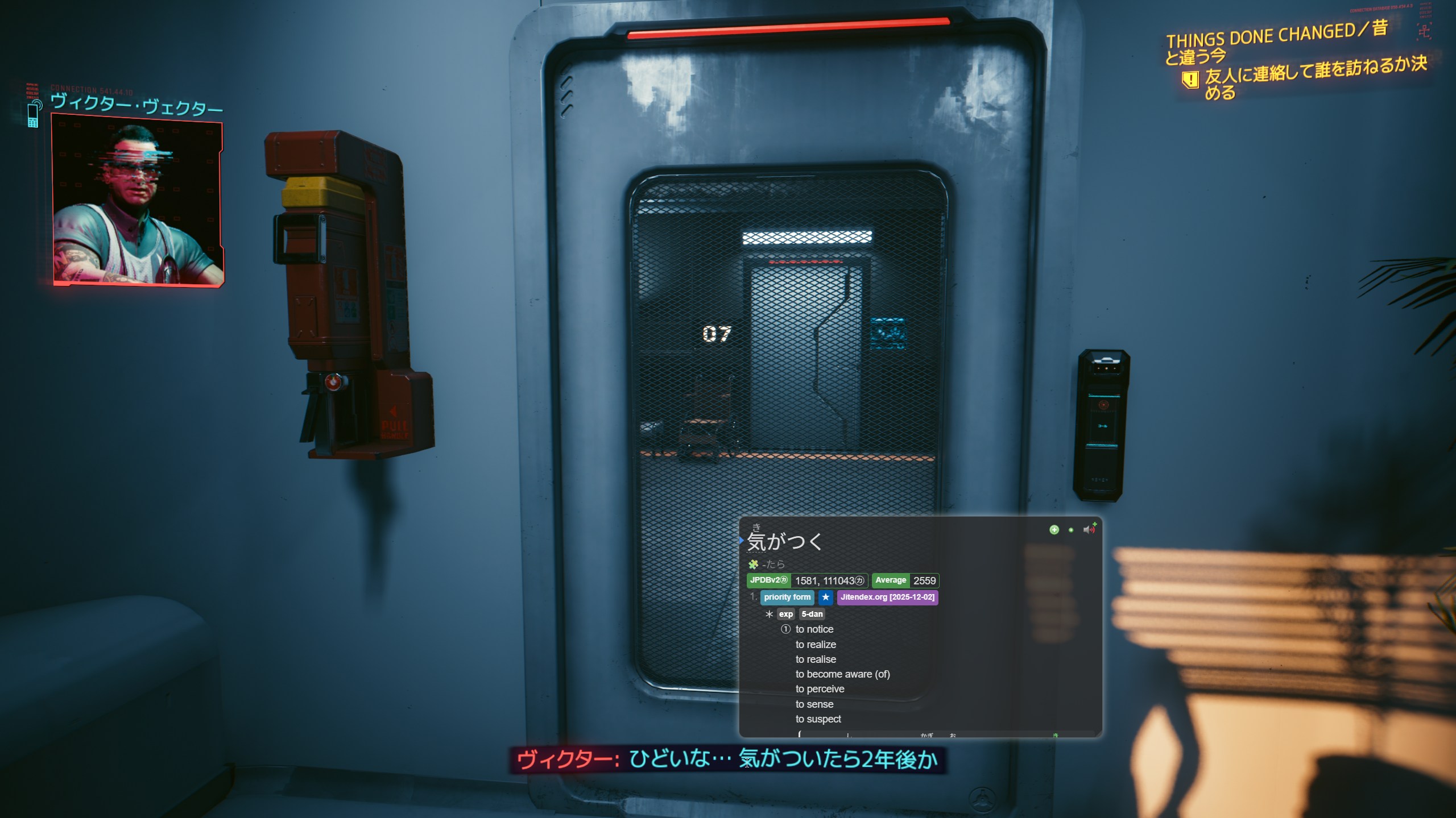
The GSM Overlay is a transparent, always-on-top window that sits over your game, enabling Yomitan dictionary lookups directly on recognized text. When OCR detects words on screen, the overlay places invisible but hoverable text boxes at each word's exact position — hover or click a word and Yomitan's dictionary popup appears right there.
How It Works
- Text arrives — via text hook (Agent/Textractor) or OCR.
- OCR scan — GSM takes a screenshot of the game window and runs OCR to get word-level bounding boxes.
- Coordinate mapping — Bounding box coordinates are converted to screen-relative positions, accounting for window offset, scaling, and Magpie upscaler (if active).
- Overlay rendering — Invisible text boxes are positioned at each word's location on the transparent overlay window.
- Yomitan lookup — Hover or click a text box and the embedded Yomitan extension shows its dictionary popup directly on screen.
Key Capabilities
| Feature | Description |
|---|---|
| On-screen dictionary | Hover any word to see Yomitan definitions without leaving the game. |
| Click-through | The overlay is transparent and passes clicks through to the game. It only becomes interactive when you hover over detected text or when a popup is open. |
| Manual mode | For fullscreen games that trap the mouse — hold a hotkey to activate the overlay, release to return to the game. |
| Gamepad navigation | Navigate between words using a controller, with word-level cursor movement via MeCab or other tokenizers. See Overlay Gamepad Navigation. |
| AI translation | Press a hotkey to get an AI translation of the current text, displayed on-screen. |
| Main text box | A draggable, resizable box showing the full text from the text hook. |
| Magpie compatibility | Automatically remaps coordinates when using the Magpie upscaler. |
| Embedded Yomitan | A modified Yomitan fork is built into the overlay — no browser extension setup needed. |
Setup
1. Launch the Overlay
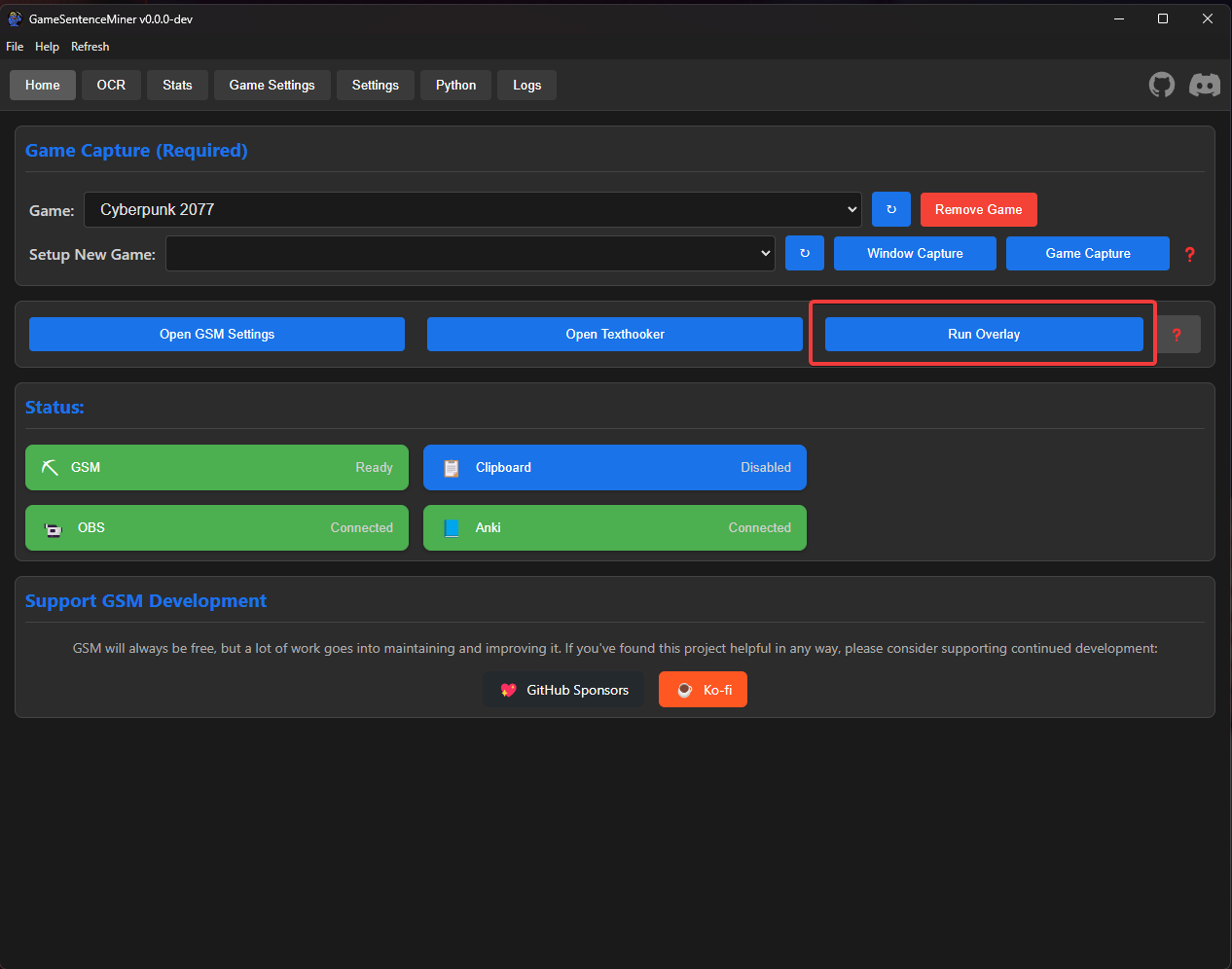
The overlay can be launched:
- Automatically on GSM startup (enable
Run Overlay on Startupin settings). - Manually from GSM's Home tab.
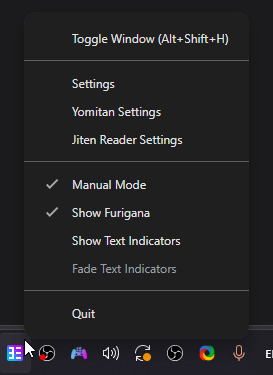
- From the GSM tray icon by right-clicking the tray icon and choosing the overlay action or settings entry you need.
2. Import Dictionaries
Since the overlay uses its own embedded Yomitan instance, you need to import dictionaries separately:
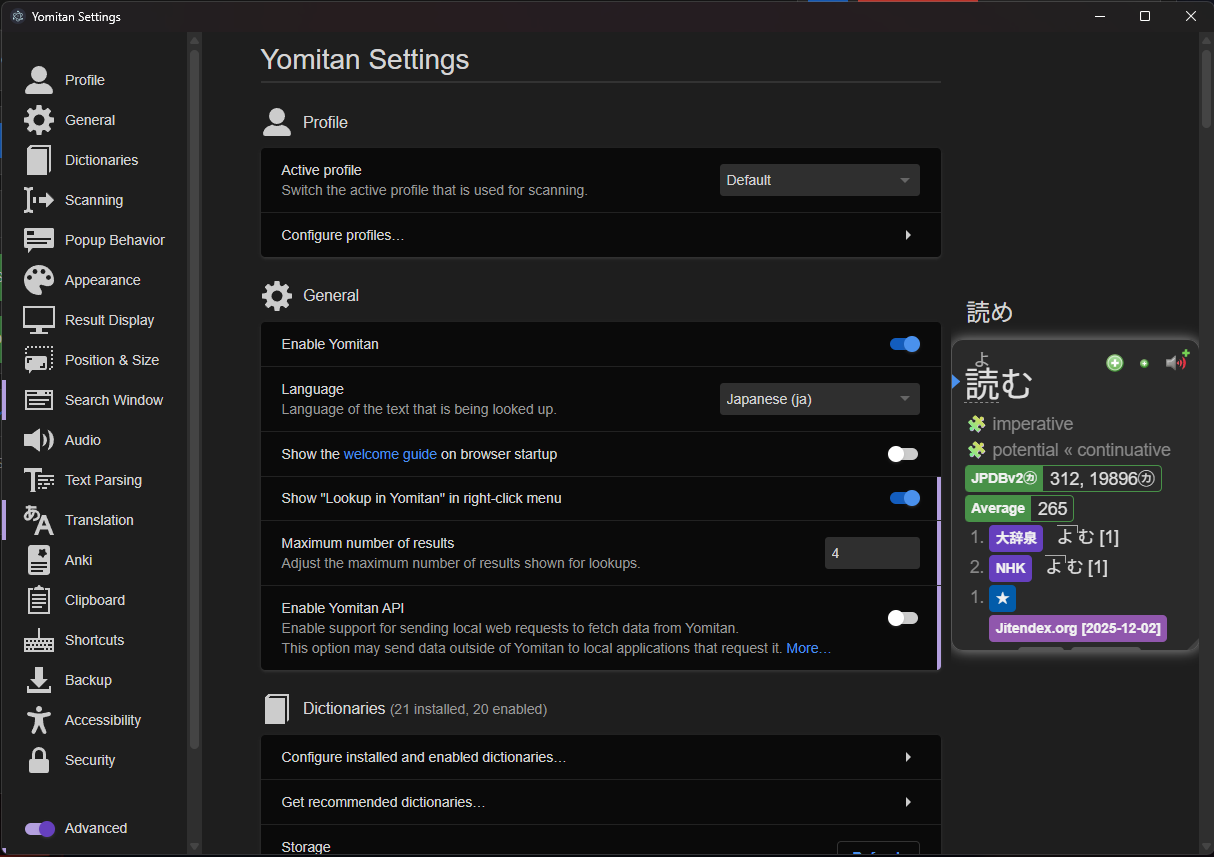
- Open Yomitan settings in the overlay with Alt+Shift+Y.
- Import your dictionaries (same
.zipfiles you'd use in the browser extension). - You can also export your dictionaries/settings from your browser Yomitan and import them into the overlay, at the very bottom of the Yomitan settings panel. Make sure you import dictionaries first, and then settings.
3. Configure the OCR Engine
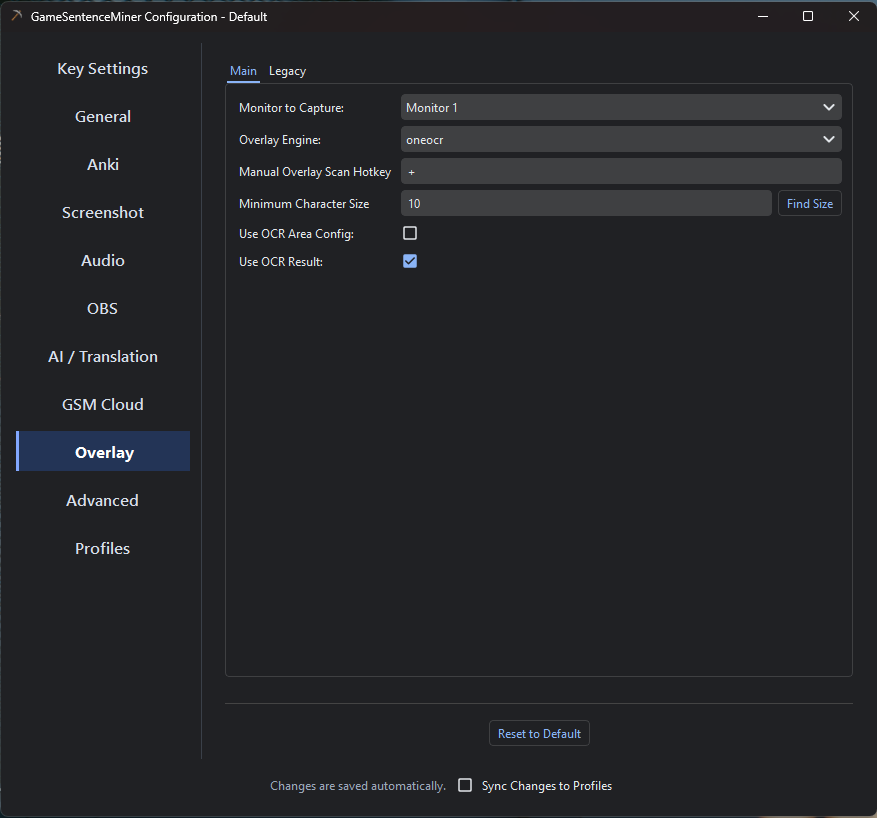
In GSM's settings under the Overlay tab, choose which OCR engine to use for bounding box detection:
| Engine | Notes |
|---|---|
| OneOCR | Default. Local, fast. Windows only. |
| MeikiOCR | Local, supports bounding-box stability checks. |
Google Lens (lens) | Default. Cloud-based, high accuracy. Requires internet. |
| ScreenAI | New OCR that sort of mimics lens, but is inconsistent. |
Floating Text Box
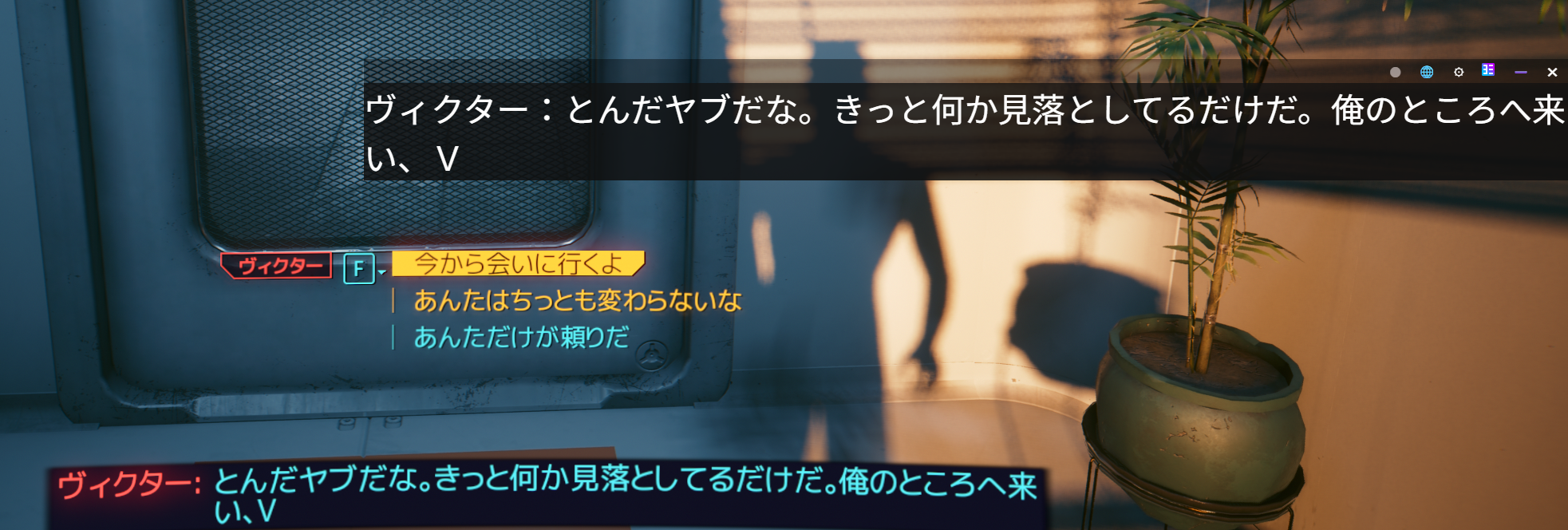
The floating text box is an alternative to the on-screen word lookups. It shows the full text from your text hooker in a draggable, resizable window. The toolbar provides buttons for:
- Pin/unpin the box
- AI translation
- Settings
- Yomitan settings
- Minimize/close
You can hide this box and rely entirely on the on-screen word lookups for a cleaner experience.
Hotkeys
| Hotkey | Function |
|---|---|
Shift+Space | Show overlay (manual mode) |
Alt+Shift+H | Toggle the main text box |
Alt+Shift+J | Hide/Show the overlay entirely (useful if it blocks game elements) |
Alt+Shift+Y | Open embedded Yomitan settings |
Alt+Shift+S | Open overlay settings |
Alt+T | Request AI translation of current text |
F8 | Trigger manual OCR scan |
Settings
Python-side (Overlay Tab in GSM Settings)
| Setting | Default | Description |
|---|---|---|
Overlay Monitor | Monitor 1 | Which monitor to capture for OCR. |
Overlay Engine | lens | OCR engine for bounding box detection. |
Periodic Scanning | Off | Continuously scan without text events (for manga/video). |
Periodic Interval | 1.0s | Seconds between periodic scans. |
Local Scans Per Text Event | 1 | Number of local OCR scans per text event (0 = disabled). |
Minimum Character Size | 0 | Ignore characters smaller than this pixel height (filters furigana). |
Manual Scan Hotkey | F8 | Hotkey to trigger immediate scan. |
Overlay-side Settings
Access via Alt+Shift+S in the overlay app, or from the GSM tray icon if you want to open overlay settings without bringing the full app window forward.
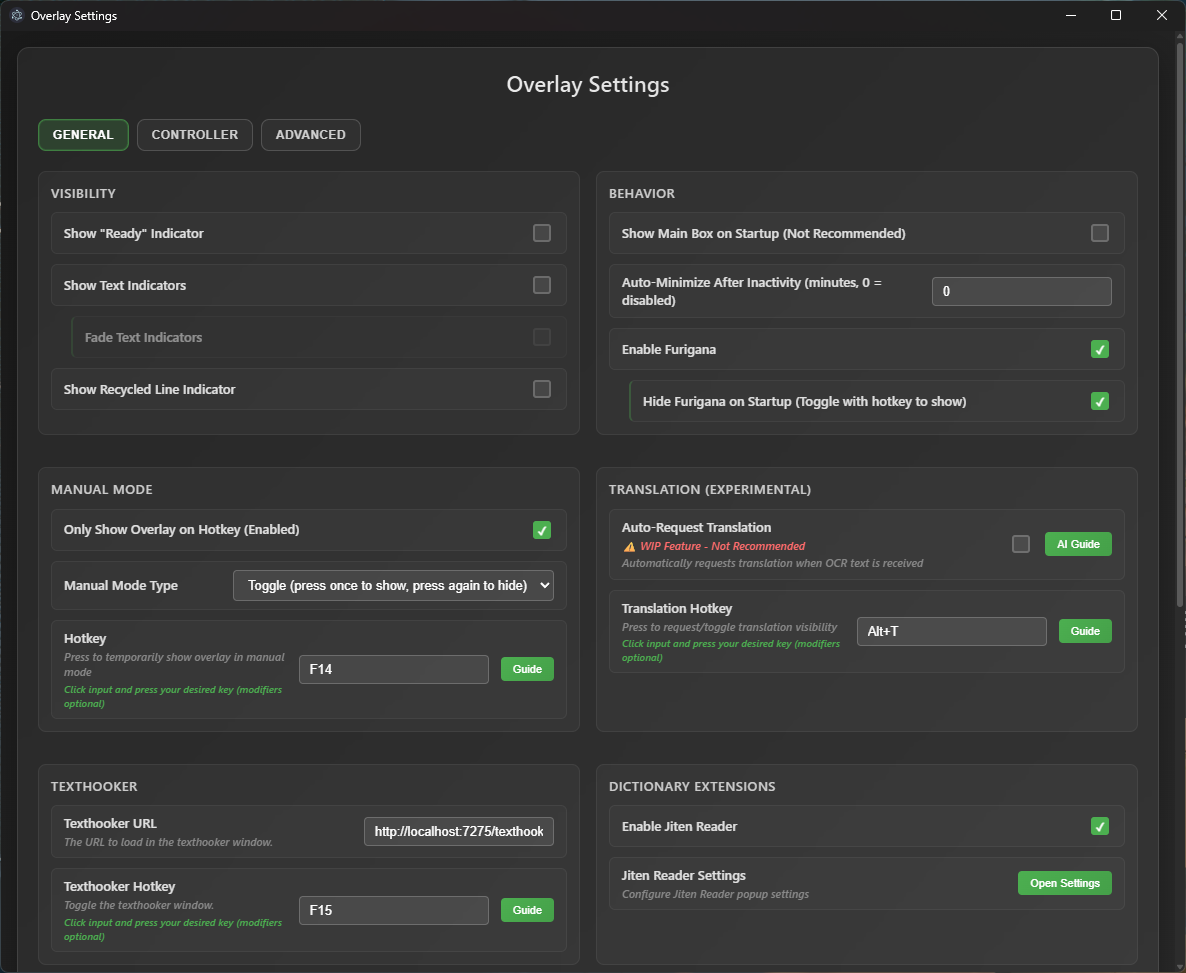
| Setting | Default | Description |
|---|---|---|
Font Size | 42 | Text box font size. |
Only Show on Hotkey | Off | Require hotkey to show overlay (manual mode). |
Show Background Behind Text | Off | Add a fading border around detected text for visibility. |
Enable Magpie Compatibility | Auto | Magpie compatibility is detected automatically when GSM sees Magpie managing the game window. |
Manual Mode
Some games run in exclusive fullscreen and trap the mouse cursor. In these cases, enable Only Show Overlay on Hotkey in the overlay settings:
- Hold mode (default): Hold
Shift+Spaceto make the overlay interactive. Release to return focus to the game. - Toggle mode: Press the hotkey to toggle the overlay on/off.
When the overlay is not active in manual mode, all input passes through to the game.
Recommended Yomitan Settings
For the best overlay experience, consider these Yomitan settings (accessible via Alt+Shift+Y):
You can also reach the overlay's Yomitan and settings-related actions from the GSM tray icon, which is useful when the overlay is already running in the background.
| Setting | Recommended Value | Why |
|---|---|---|
| Scan modifier key | No key | Just hover over text to scan — no key needed. |
| Select Matched Text | Disabled | Cleaner appearance. |
| Auto-hide search popup | Enabled (delay: 50) | Popup disappears quickly when you move away. |
Custom CSS for Yomitan
You can add custom CSS in Yomitan's settings to give the popup a glassy look that fits the transparent overlay. Add this in the Yomitan settings accessible from the overlay:
Popup CSS
body {
  background: transparent !important;
  color: #dfdfdf;
}

.gloss-sc-thead,
.gloss-sc-tfoot,
.gloss-sc-th {
  background-color: transparent;
}

.headword-term > ruby > rt {
  color: #979797;
}
Popup Outer CSS
iframe.yomitan-popup {
  background: rgba(45, 45, 55, 0.85) !important;
  backdrop-filter: blur(6px) !important;
  -webkit-backdrop-filter: blur(6px) !important;
  border-radius: 12px !important;
  border: 1px solid rgba(255, 255, 255, 0.2) !important;
}
Magpie Upscaler Support
If you use Magpie to upscale your game, GSM handles Magpie compatibility automatically. When GSM detects Magpie managing the game window, it remaps word coordinates from the original game resolution to the upscaled display. This works in both fullscreen and windowed Magpie modes.
Magpie support can still feel a little weird in practice. Magpie takes a lot of control over the game window, so focus, hover behavior, and coordinate mapping can be less predictable than in a normal windowed setup.
Troubleshooting
Only the first part of the text is detected
This happens because text appears slowly and the overlay captures the screen once per text event. Fix: Set your game to display text instantly if possible. If not, increase Scan Delay or use Local Scans Per Text Event to scan multiple times after each event.
The Yomitan popup is uninteractable
This is caused by Allow Scanning Popup Content being enabled in Yomitan. Fix: Disable that setting in the overlay's Yomitan settings.
Prerequisites
- GSM Python backend must be running (provides the WebSocket server and OCR processing).
- No separate browser extension needed — Yomitan is embedded in the overlay.
- Dictionaries must be imported through the overlay's embedded Yomitan settings.
- OBS recommended for accurate window capture.
- Internet required for cloud OCR engines (Google Lens).
See Also
- Overlay Gamepad Navigation — Full guide on using a controller with the overlay to navigate text and trigger dictionary lookups without a keyboard or mouse.