Anki/Yomitan Setup
1. Install AnkiConnect
In Anki
- Tools -> Addons -> Get Addons...
- Install AnkiConnect by pasting
2055492159and clicking OK. - Restart Anki
2. Set Yomitan to Use AnkiConnect
Open Yomitan settings:
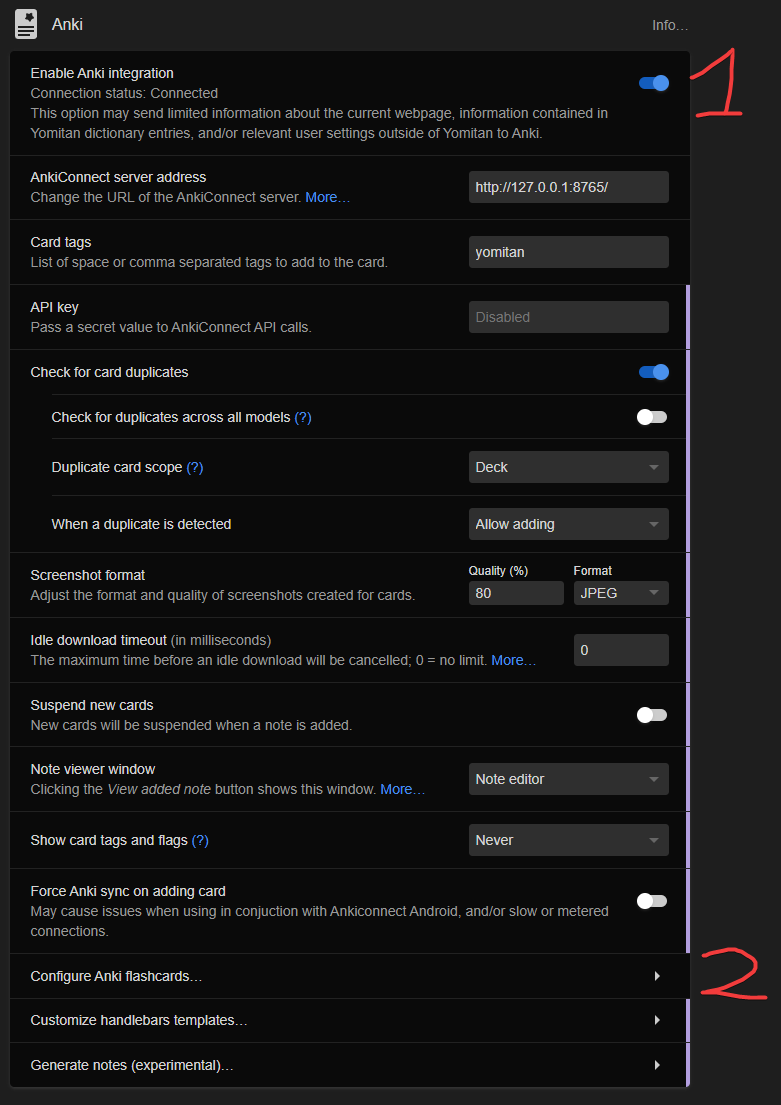
Anki->Enable Anki IntegrationConfigure Anki Flashcards
3. Setup Anki Note Type
It is not required to use these specific note types, these are just my personal recommendations based on experience and community feedback. You can use any Anki note type you prefer, as long as you map the fields correctly in Yomitan, and GSM.
If you want something simple, Lapis is a great choice. If you want something more advanced with more features, Kiku is excellent.
- Kiku
- Lapis
- Senren
Kiku Setup

Kiku is a very new note type and is rapidly evolving. I've moved to using Kiku as my primary note type due to its rich feature set and active development. Below are the recommended Yomitan field mappings for Kiku.
1. Installation
- Download the latest release
Kiku_v*.apkgfrom GitHub Releases. - Double-click the file to import it into Anki.
- The
Kikunotetype should now be available in your Note Types list.
2. Note Manager (Optional)
The Kiku Note Manager addon is recommended to generate a notes cache so the Kanji View feature works across all platforms.
- Install the Kiku Note Manager Addon.
- Go to
Tools>Kiku Note Manager>Generate notes cache.
3. Yomitan Fields
Open Yomitan settings, go to Anki > Configure Anki flashcard, select Kiku as the Model.
| Field | Value |
|---|---|
| Expression | {expression} |
| ExpressionFurigana | {furigana-plain} |
| ExpressionReading | {reading} |
| ExpressionAudio | {audio} |
| SelectionText | {popup-selection-text} |
| MainDefinition | {single-glossary-jmdict/jitendex} Click the down arrow next to this field to find your specific dictionary. |
| DefinitionPicture | Leave empty (or use for manual images) |
| Sentence | {cloze-prefix}<b>{cloze-body}</b>{cloze-suffix} |
| SentenceFurigana | |
| SentenceAudio | |
| Picture | |
| Glossary | {glossary} |
| Hint | |
| PitchPosition | {pitch-accent-positions} |
| PitchCategories | {pitch-accent-categories} |
| Frequency | {frequencies} |
| FreqSort | {frequency-harmonic-rank} |
| MiscInfo | {document-title} |
Lapis Setup
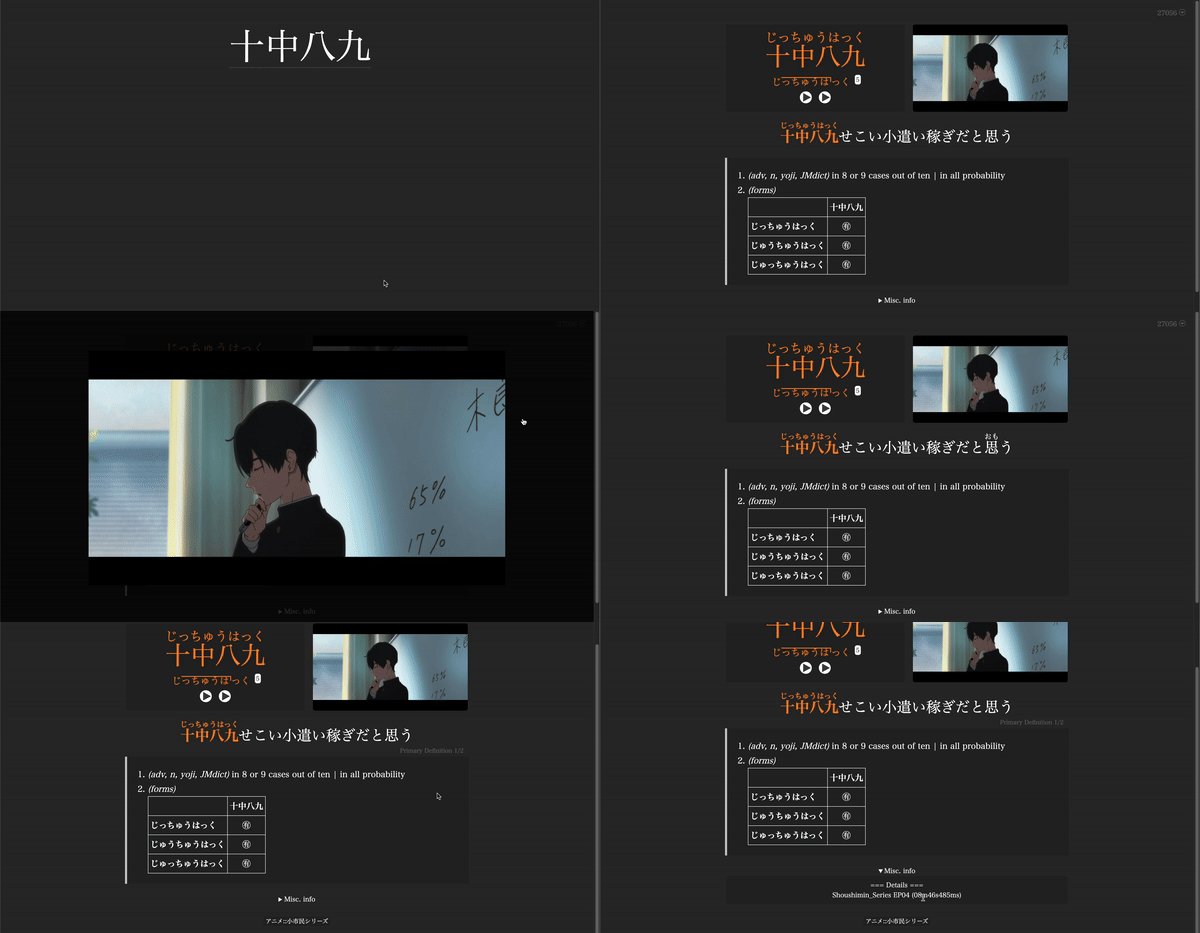
I used to use Lapis, and it remains a solid choice for it's simplicity and ease of use. Below are the recommended Yomitan field mappings for Lapis.
1. Installation
- Download the example deck from Lapis Releases.
- Import the deck into Anki.
2. Yomitan Fields
Select Lapis as the Model in Yomitan's Configure Anki Card Format.
In MainDefinition, what you get will depend on the version of JMdict or Jitendex you have. If you decide you do not want to use any bilingual dictionary, simply use your main monolingual dictionary there.
Ensure that the SentenceFurigana field is empty. We strongly recommend against using the {sentence-furigana} handlebar as it breaks bold formatting.
| Field | Value |
|---|---|
| Expression | {expression} |
| ExpressionFurigana | {furigana-plain} |
| ExpressionReading | {reading} |
| ExpressionAudio | {audio} |
| SelectionText | {popup-selection-text} |
| MainDefinition | {single-glossary-jmdict/jitendex} |
| DefinitionPicture | Leave empty (or use for manual images) |
| Sentence | {cloze-prefix}<b>{cloze-body}</b>{cloze-suffix} |
| SentenceFurigana | |
| SentenceAudio | |
| Picture | |
| Glossary | {glossary} |
| Hint | |
| PitchPosition | {pitch-accent-positions} |
| PitchCategories | {pitch-accent-categories} |
| Frequency | {frequencies} |
| FreqSort | {frequency-harmonic-rank} |
| MiscInfo | {document-title} |
Senren Setup

Senren is a very attractive option based on looks alone. I have never used Senren, so I can't offer support beyond this setup guide, which is directly from the Senren documentation.
1. Yomitan Fields
In Yomitan Settings -> Anki -> Configure Anki Flashcards:
| Field | Value | Notes |
|---|---|---|
| word | {expression} | |
| sentence | <span class="group">{cloze-prefix}<span class="highlight">{cloze-body}</span>{cloze-suffix}</span> | |
| sentenceFurigana | <span class="group">{sentence-furigana}</span> | |
| sentenceEng | Leave empty. | |
| reading | {pitch-accents} | |
| sentenceCard | Leave empty. | |
| audioCard | Leave empty. | |
| notes | Leave empty. | |
| selectionText | {popup-selection-text} | |
| definition | {single-glossary-jitendexorg-2025-04-11} | Set your primary dictionary here. |
| wordAudio | {audio} | |
| sentenceAudio | Leave empty. | |
| picture | {clipboard-image} | |
| glossary | {glossary} | Enables extraction from all active dictionaries. |
| pitchPosition | {pitch-accent-positions} | |
| pitch | {pitch-accent-categories} | |
| frequency | {frequencies} | |
| freqSort | {frequency-harmonic-rank} | |
| miscInfo | {document-title} | |
| dictionaryPreference | Enter glossary to show the glossary first, or specific dictionary names to prioritize them. |
2. Yomitan Handlebars (Optional)
- Go to Yomitan Settings -> Anki -> Configure Anki card Templates...
- Replace the code with the following:
Click to expand required Handlebars code
3. Result Display
For the glossary field to populate correctly with multiple dictionaries, you must enable grouping:
- Settings -> Appearance -> Result Display
- Select Group term-reading pairs OR Group related terms.