Mining Hard-Subbed Content
Overview
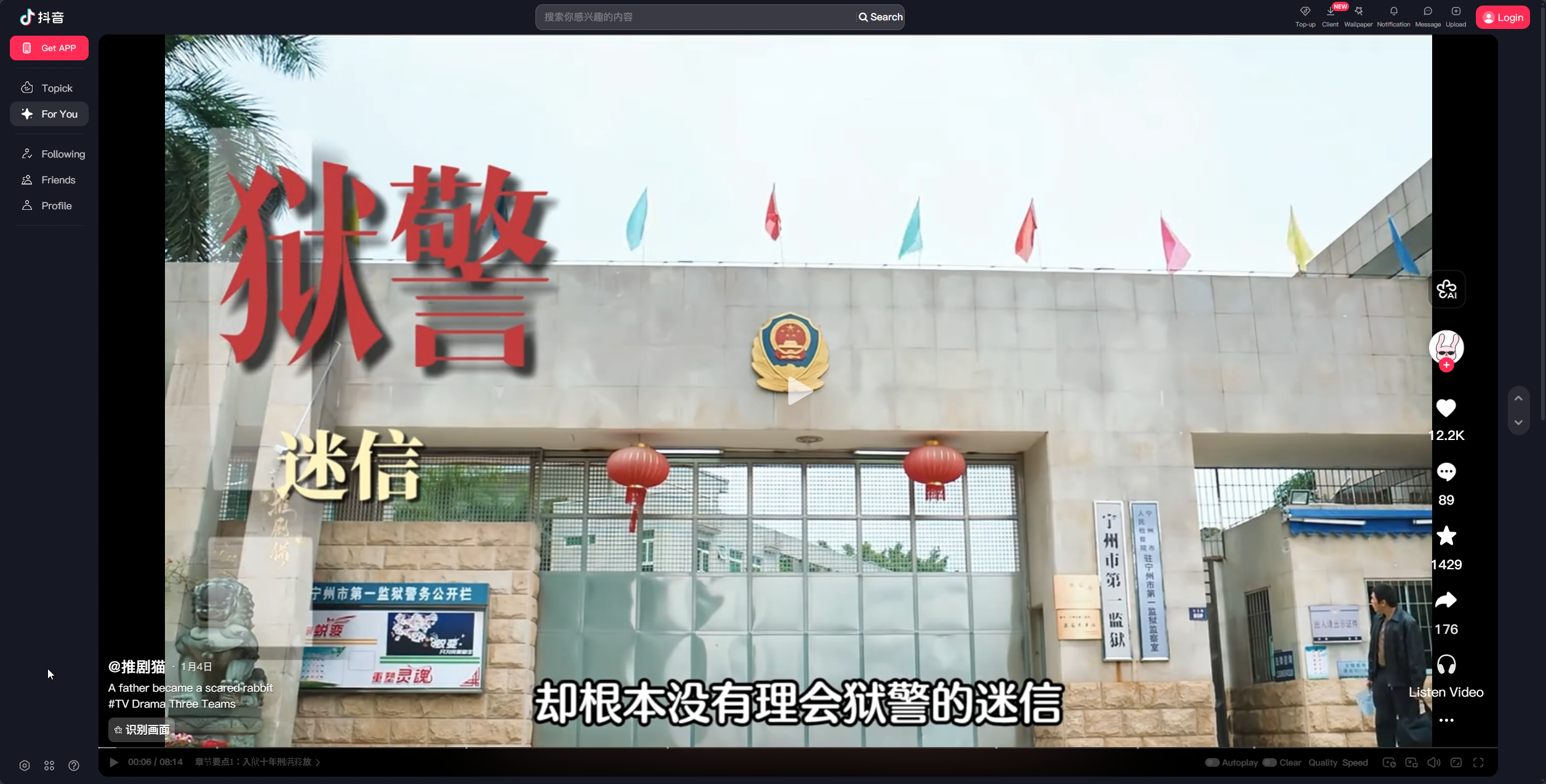
How to mine this?
GSM can be used to mine from anime, movies, or any video content with hard-coded subtitles (hard subs). This is particularly useful when:
- You're learning a language with limited gaming content (e.g., Vietnamese, Thai, Indonesian)
- You want to mine from streaming sites with embedded subtitles
- You're watching fansub releases with burned-in subtitles
Example:
While not as seamless as mining from games, this workflow allows you to capture both audio and screenshots from video content with hard subs.
This guide focuses on hard-subbed content. If you're mining from anime with soft subs (external subtitle files), I recommend tools like asbplayer.
Setup Overview
The basic workflow involves:
- Setting up a browser window or video player with your content
- Capturing that window using GSM/OBS
- Cropping the capture to show only the subtitle area (optional but recommended)
Step 1: Set Up Your Video Source
Open your video content in a browser or video player. Common options include:
- Web Browsers: Chrome, Edge, Brave, Firefox
- Video Players: VLC, MPC-HC, mpv
Some users have reported that Chrome doesn't always appear in GSM's window capture dropdown. If you experience this issue, try using Edge or Brave, which tend to work more reliably. Alternatively, you can capture Chrome through OBS (see Step 3).
For a cleaner experience, consider installing your video site (e.g., BiliBili, Netflix) as a standalone app using your browser's "Install as App" feature. This creates a dedicated window without browser UI clutter.
Some streaming services use DRM that may prevent screen capture. If you encounter issues, consider using a different video source or player that allows capturing, or disable Hardware Acceleration in your browser settings.
Step 2: Capture the Video in OBS
Option A: GSM Window Capture (Recommended)
If you see the browser or video player window in GSM's dropdown, you can capture it directly by selecting it, and pressing "Window Capture".
Option B: Direct Window Capture (Recommended #2)
- Open OBS Studio
- Create a new scene for your video capture, call it something that makes sense to you, since it will be used to name the files.
- In the Sources panel, click the + button
- Select Window Capture
- Give it a name (e.g., "BiliBili Capture") and click OK
- In the window dropdown, select your browser or video player window.
- If available, use
Windows 10Capture Method. - Enable "Audio Output Capture" in OBS to capture audio from the video.
- Disable "Capture Cursor" unless you want the mouse cursor to appear in your screenshots.
- Click OK
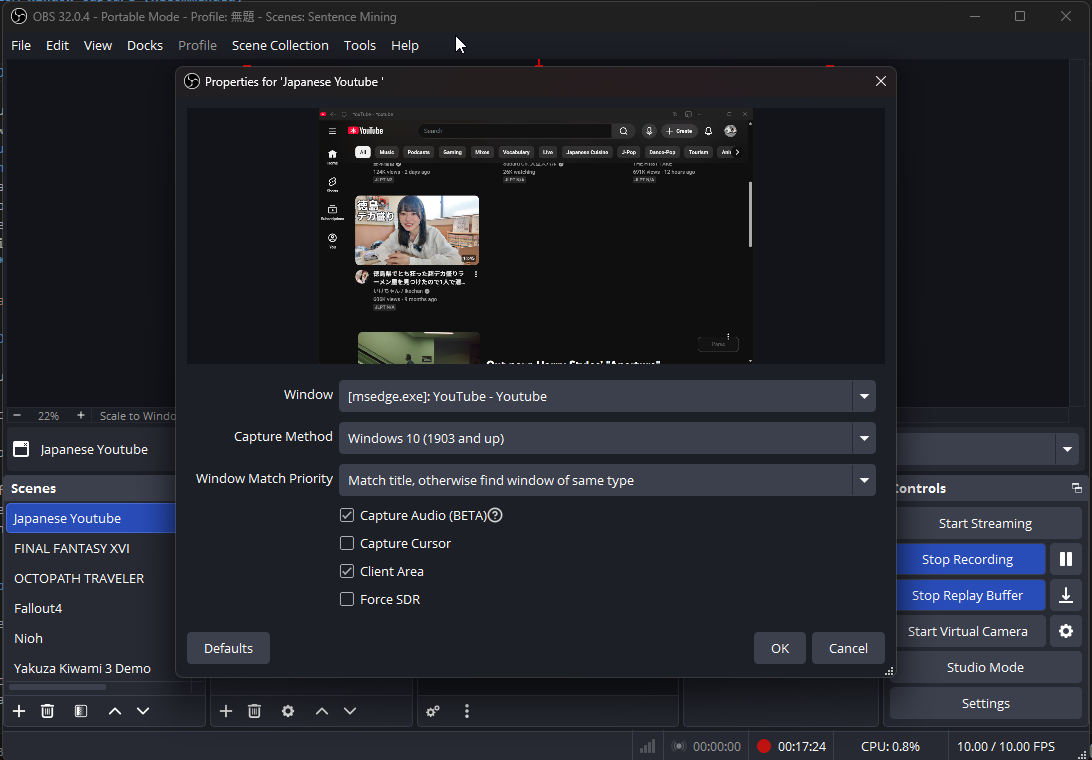
Option B: Display Capture
If window capture doesn't work for your setup:
- In OBS Sources, add a Display Capture
- Select your monitor
- You can crop it later to show only the video window
Display capture may use more system resources than window capture. Use window capture when possible. You will also need to enable Desktop Audio, which is not generally not recommended for a clean experience.
Step 3: Crop to Subtitle Area (Optional)
To focus on the subtitle area and reduce file sizes:
- Right click on the Preview area in OBS, select Transform > Edit Transform
- Adjust the crop at the bottom to include just the video area.
- This will make your screenshots cleaner and your Anki cards more focused
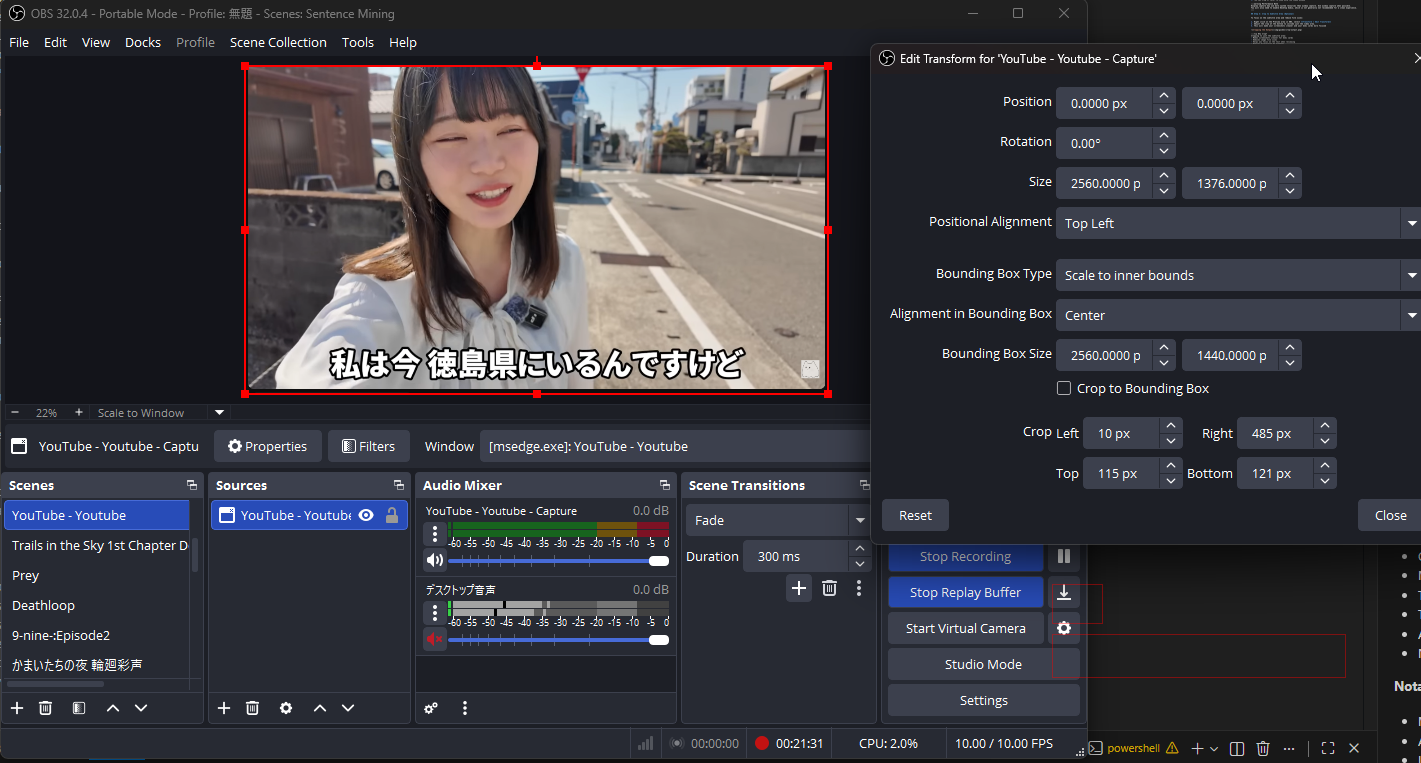
Cropping to just the subtitle area:
- Makes screenshots cleaner for Anki cards
- Reduces image file sizes
- Helps you focus on the text when reviewing
- Removes distracting UI elements
Step 4: OCR
Now you can use GSM's OCR feature to capture the subtitles from your video content just as if it was a Game. Make sure to adjust the OCR area to match the subtitle position in the video.
The cropped output and what GSM grabs for OCR is different, so don't be alarmed if the OCR config image doesn't match what you see in OBS.
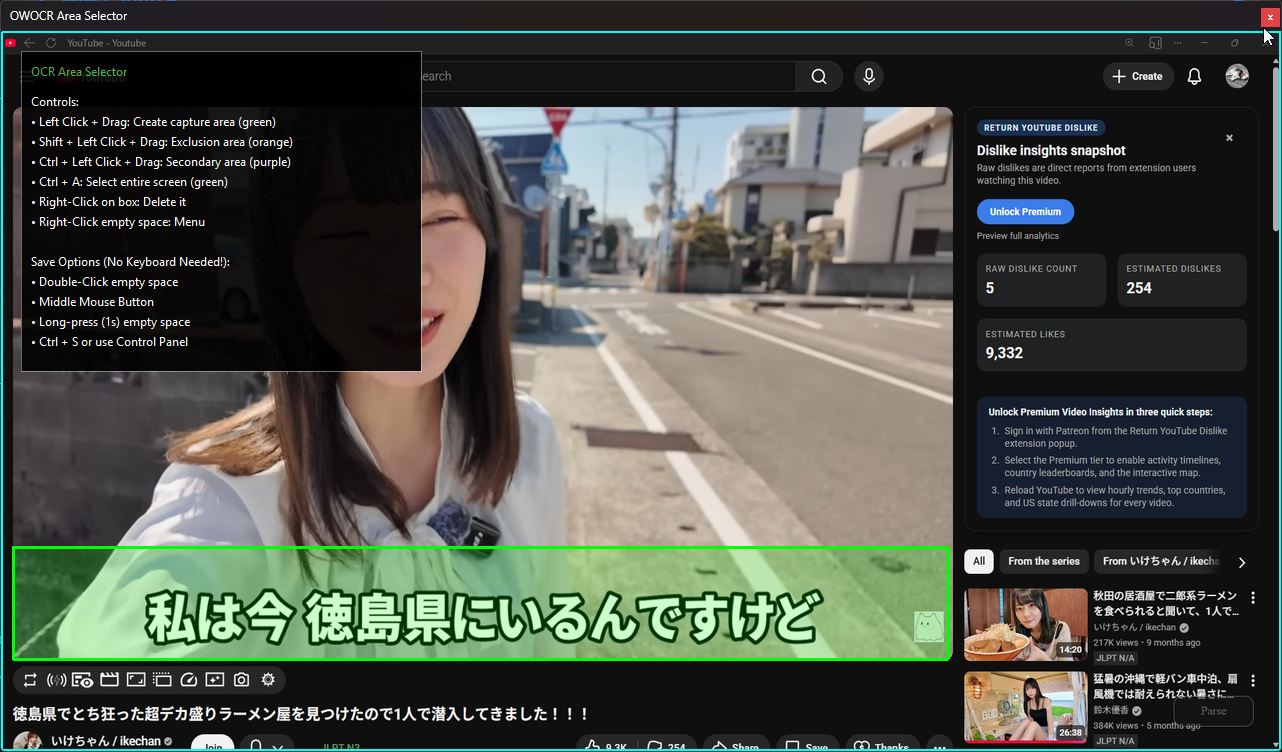
Step 5: Mine
Just like with games, you can now mine the subtitles as they appear in the video, and they will be captured along with audio and screenshots.
Happy mining! 🎬